
Jump to:
📂 Steer Campaign Filtering Types:
🔗 Days After Visit (DAV) Campaign Filter
📂 Campaign Related Articles:
🔗 Outreach Campaign Tips & Tricks
🔗 How to Create a Campaign (Step-by-Step)
🔗 Maintenance Reminder Campaign Articles
🔗 Deferred Service Campaign Articles
Steer Campaign Filtering Types
In Steer you are able to customize your campaign audience to your liking, there are three main ways to customize your target audience:
👉Segment Setting Filters: filter directly in the campaign segment settings.
👉Creating Customer Groups: build a Customer Group (static or dynamic) utilizing Advanced Filters in the Customer List page.
👉Days After Visit (DAV) Campaign Specific Filter:* added to Follow-Up and Outreach Campaigns in the Campaign Editor Settings to ensure that the customer has visited the shop within the specified time range(0-730) or singular date amount(6 days).
*The DAV filter can be applied in tandem with Segment Setting Filters and Customer Groups if you did not already apply a similar filter.
Segment Setting Filters
For quick filtering of your campaign audience, you can filter directly in the Campaign Segment Settings.
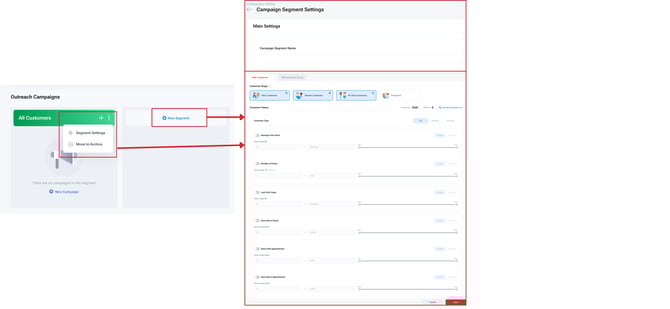
To learn How to Create Campaign Segments Step-by-Step, 🔗 Click Here.
The filters in the Segment Settings area allow you to target customers based on selected criteria - you can include or exclude the customers who meet the filtered criteria.
Segment Setting Filter Examples:
| Customer Stage: | New, Repeat, No Visit, Prospects. |
| Last Visit Value Range: | Value of the customer's last invoice. |
| Number of Visits Range: | How many visits the customer has had to the shop. |
| Days Until Appointment Range: | Timeframe to the customer's next scheduled appointment. |
Creating Customer Groups
To fine tune your campaign audience, you can utilize Steer's Advanced Filters to create Static and Dynamic Customer Groups to send your campaign to. Creating Customer Groups allows you access to more filters for targeting your outreach to specific customers.
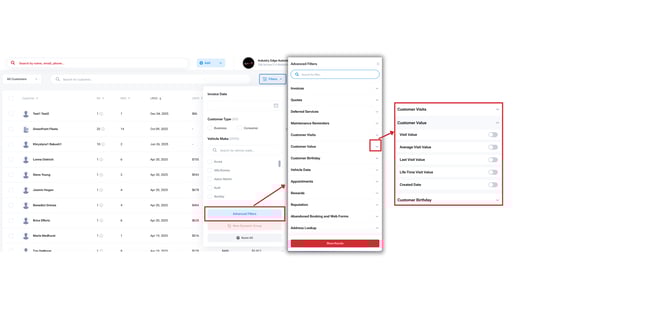
To learn How to Create Customer Groups Step-by-Step, 🔗 Click Here.
Creating customer groups is great for Outreach Campaigns in which you want to target a specific group of customers, such as the examples below:
| Invoice Data: | Invoice Search (keyword), Part Number |
| Customer Value Data: | Visit Value, Avg. Value, Life-Time Visit Value, Etc. |
| Quote/Appointment Data: | Date of Quote/Appointment, Etc. |
| Vehicle Data: | Year, Make, Model |
Days After Visit (DAV) Campaign Filter
🗒️ Note: The Days After Visit (DAV) filter is pre-applied to all Follow-Up & Outreach Campaigns.
The DAV Filter ensures your campaigns are going out to Active Customers of your shop; these are customer's who have closed and invoice within the last 2 years. The DAV filter can be applied in tandem with Segment Setting Filters and Customer Groups, if you did not already apply a similar filter such as: Invoice Date or Appointment filters.
Follow-Up Campaign Rules:
⭐ Important: All Follow-Up Campaigns require the use of the Days After Visit (DAV) Filter or New Customer/Prospect Type Filters in order to send campaigns within this section.
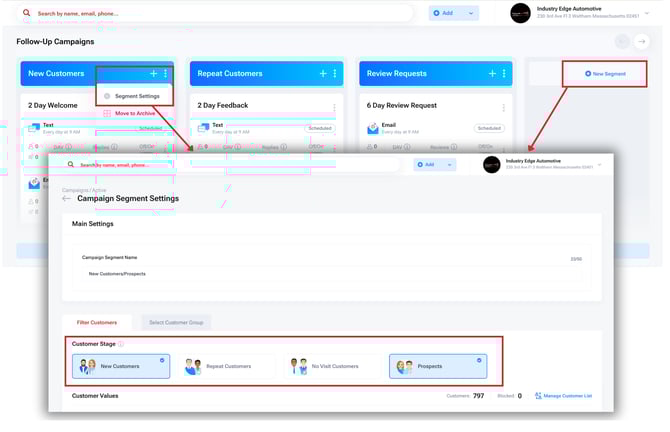
The Days After Visit Filter (DAV) is applied in the Campaign Editor screen as seen in the following image.

New Customer/Prospect Type Filters can be used in place of the DAV filter to send campaigns in the Follow-Up section, you can apply Appointment filters directly in the Segment Setting Filters, 🔗 Click Here to learn how.
Outreach Campaigns Rules:
⭐ Important: All new Outreach Campaigns will have the default filter of Days After Visit 0-365 Days applied to the campaign.
This can be adjusted up to 730 Days After Visit, maximum.
When creating new Outreach Campaigns, the DAV filter will appear automatically ON, on all campaigns for 0-365 Days, as shown in the image below.
You can adjust the filter date range (up to 730), or change the filter to a single day amount, choose the option that best fits your target audience.

If you attempt to send a campaign without the DAV Filter, or with the filter adjusted past 730 days, you will receive a message similar to the following:
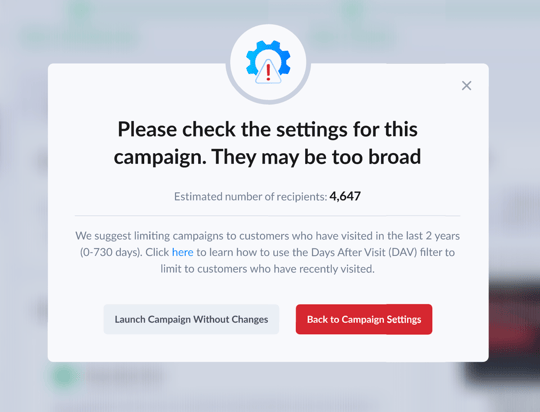
You can still send the campaign with the DAV filter OFF, however we strongly suggest against this, and recommend adding in the DAV filter.
🗒️ Note:
⭐If the targeted Customer Amount is LOW (hundreds) the campaign is safe to send without the DAV filter.
⭐If the targeted Customer Amount is HIGH (thousands) you risk a high unsubscribe rate which could hurt the future deliverability of your campaigns. Please add the DAV filter, or narrow down your customer amount using Segment Settings or Customer Groups.
Need help customizing your campaigns?
Click a Campaign Type below to view Best Practice Articles relative to customizing your Steer campaign types.
🔗 Maintenance Reminder Campaign Articles
🔗 Deferred Service Campaign Articles