
Get a more complete picture of your customers' vehicle history with CARFAX® Service History in Steer. Customers can view service records, reported mileage, and recall information directly from their Digital Glovebox portal or Public Vehicle page, including services performed at other shops that report to CARFAX.
This gives customers a convenient place to check their vehicle history and helps them stay informed about past maintenance and open recalls.
⚙️✅The Steer + CARFAX integration requires an active CARFAX Car Care subscription.
Jump to:
Enabling CARFAX service history
Using CARFAX odometer readings for predictive maintenance
Enabling CARFAX Service History
CARFAX Service History is available to locations enrolled in the CARFAX Car Care program. You can enable CARFAX in Steer Marketing so customers can access their car history.
Step 1: Enable CARFAX in Tenant Settings
If you manage settings for multiple locations:
- Navigate to Tenant Settings.
- Select Digital Glovebox.
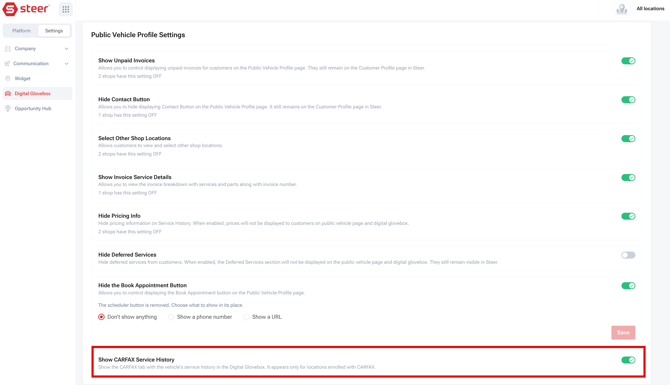
- Find Public Vehicle Profile Settings.
- Turn on Show CARFAX Service History.
This setting is turned off by default. Once enabled, eligible enrolled locations can display CARFAX Service History.
Step 2: Check Your Shop's Enrollment Status
To check whether your location is enrolled:
- Navigate to Settings.
- Select Digital Glovebox.
- Scroll to the CARFAX section at the bottom of the page.
You'll see one of two statuses:
- Enrolled: Your location is enrolled in the CARFAX program.
- Not Enrolled: Your location is not currently enrolled. Select Request Enrollment to notify the Steer team.
After submitting a request, you'll see a confirmation that your request has been sent and our team will reach out shortly.
Note: Enrollment is managed through CARFAX and Steer. Submitting a request does not immediately activate the feature.
Using CARFAX odometer readings for predictive maintenance
Every time a vehicle's odometer reading is reported to CARFAX, your shop can use that updated odometer reading to improve predictive maintenance reminders - even if the odometer reading did not occur at your shop. This helps you send more accurate maintenance reminders to customers.
To use CARFAX odometer readings:
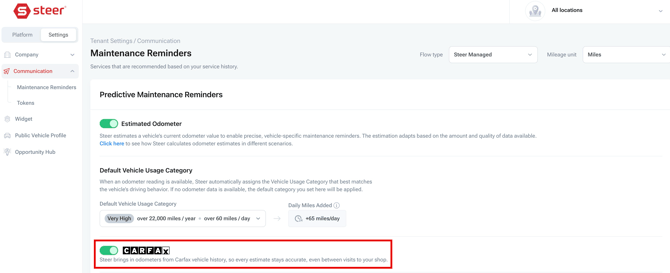
- At the tenant level, navigate to Settings > Communication > Predictive Maintenance Reminders.
- Toggle Estimated Odometer to ON.
- Toggle the CARFAX to ON.
You can learn more about predictive maintenance reminders here.
Viewing CARFAX service history
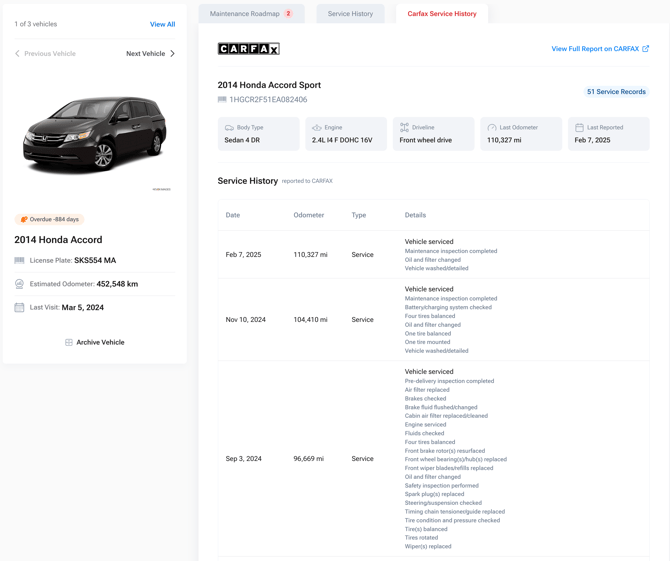
When CARFAX Service History is enabled, customers will see a new CARFAX Service History tab in their vehicle's Digital Glovebox profile.
The tab includes:
- Vehicle information: Year, make, model, trim, body type, engine, and driveline.
- Mileage information: Last reported odometer reading and reporting date.
- Service history: Records of maintenance and repairs reported to CARFAX, including services performed at other shops.
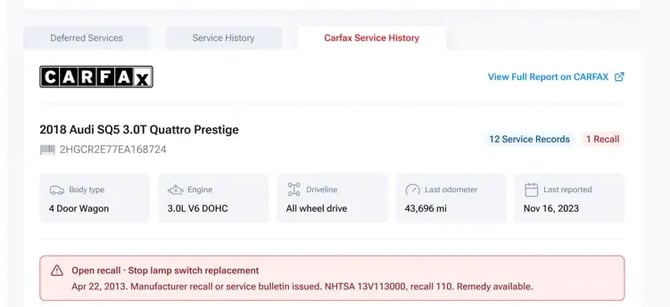
- Recall information: Open recalls, including recall details and whether a remedy is available.
- Full CARFAX report: A link to view the vehicle's complete CARFAX report.
In Digital Glovebox
Once CARFAX Service History is enabled, customers can access it from their Digital Glovebox.
- Open the Digital Glovebox.
- Select a vehicle.
- Open the CARFAX Service History tab.
- Review the vehicle's reported service records, mileage information, and recalls.
- Select View Full Report on CARFAX to open the complete report in a new browser tab.
Service history records include the service date, odometer reading, service type, and details reported to CARFAX.
In the Public Vehicle Page
- Navigate to Dashboard > Customers.
- Select a customer and scroll to the Vehicles sectioin.
- Click the CARFAX Service History tab.
- Click on the external share link to copy the link to the Public Vehicle Page.
- Share the link via email or text with shop customer.
[screenshot pending]
Viewing Open Recalls
If CARFAX identifies an open recall, customers will see an alert that includes the recall information and whether a remedy is available.
This helps customers identify potential vehicle safety concerns and gives them an opportunity to contact your shop about next steps.
Frequently Asked Questions
Does my shop need to be enrolled with CARFAX?
Yes. Your location must be enrolled in the CARFAX program, and CARFAX Service History must be enabled in your organization's tenant settings.
Will customers see services performed at other shops?
Yes. The CARFAX Service History tab includes available records from shops that report service information to CARFAX, not just services performed at your location.
Why isn't the CARFAX Service History tab appearing for a vehicle?
The tab will only appear when the feature is enabled, your location is enrolled, and the vehicle has a valid 17-character VIN.
What happens if CARFAX doesn't have records for a vehicle?
The tab will display a message indicating that no CARFAX records were found.
What if CARFAX information is temporarily unavailable?
Customers will see a message that CARFAX data is unavailable. The rest of their Digital Glovebox will continue working.
Do customers need a separate CARFAX account?
Customers can view the available service history directly in their Digital Glovebox. Opening the full report on CARFAX may prompt them to sign up for CARFAX Car Care.
Does Steer store CARFAX service history?
No. CARFAX history is retrieved when requested and cached briefly. Steer does not permanently copy CARFAX service history into its database.