
Note: Replying to reviews in Steer is currently available for Google reviews only. Click here to learn how to enable Steer's Reply to Google Reviews feature.
Jump To:
⬇️ Watch the quick tutorial below 👀
Integrating Google with Steer
There are two types of Google Review Integrations in Steer:
- Indirect Sync
- Direct Sync (allows you to reply to reviews)
Indirect Google Review Integration
Steer comes pre-configured with the indirect Google review sync. During activation, our team makes sure this is setup and that all of your Google reviews are synced in Steer.
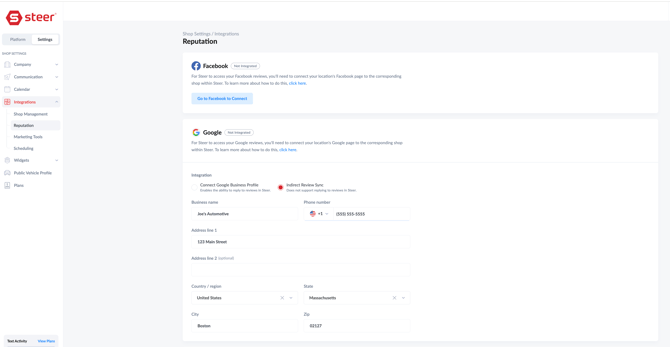
Direct Google Review Integration
The direct Google review integration allows you to respond to Google reviews in Steer.
You must be a Google Admin on your business profile to integrate your Google Business Profile in Steer. Click here for step-by-step instructions on enabling Steer's reply to Google reviews feature.
Integrating Facebook with Steer
The following integration does not yet support replying to reviews within Steer.
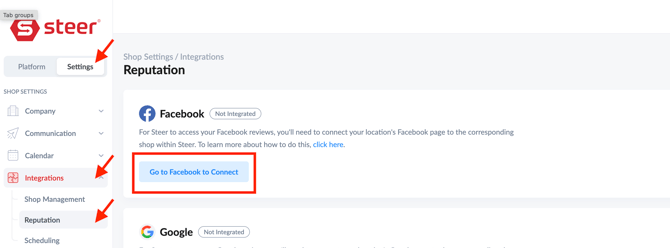
- Login to Steer.
- Settings > Integrations.
- Reputation.
- Click Go to Facebook to Connect.
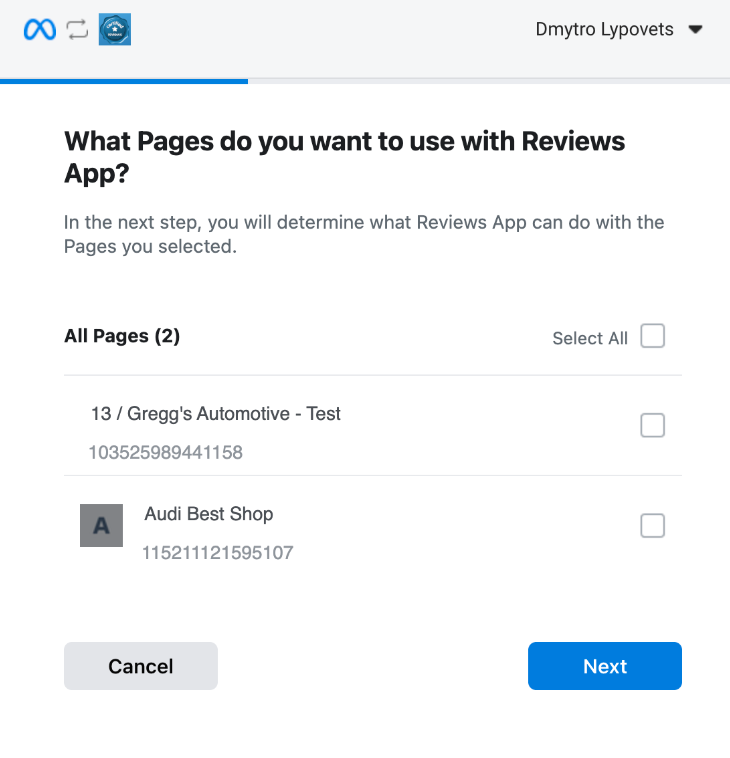
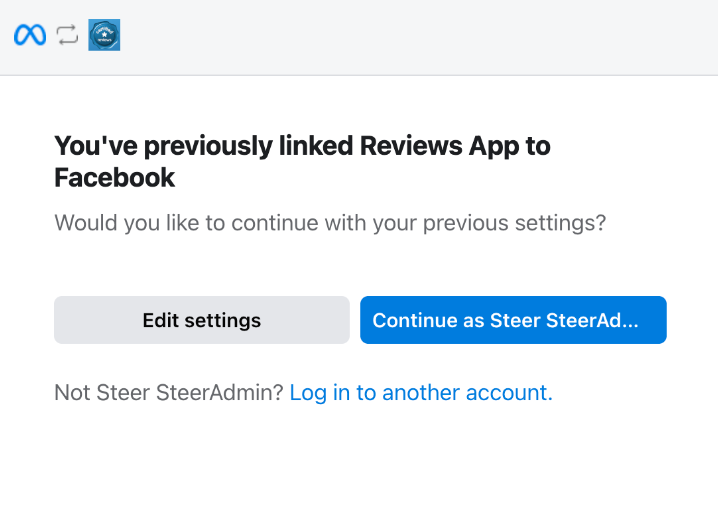
5. The system will ask you to login to the Facebook account that your shop pages are associated with.
a. After logging in, select the pages that should be included.

Please Note: For each shop page the steps from #4 should be repeated
Integrating Yelp with Steer
- Login to Steer.
- Settings > Integrations.
- Reputation.
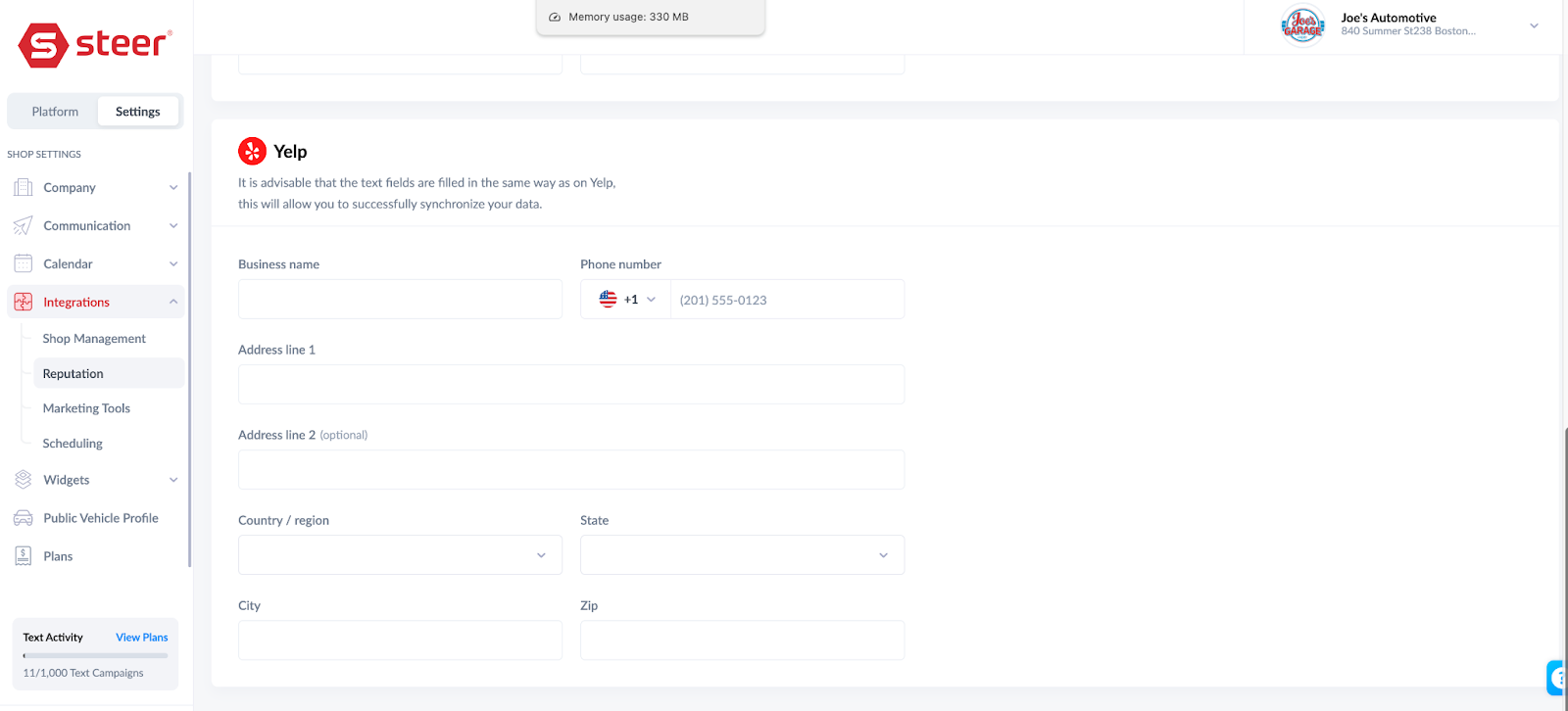
- Scroll to the Yelp section.
- Fill in the required fields matching your business’ Yelp profile.
- Click Save.
Please reach out to Customer Support if you have any questions.
- Click the ? when in the Steer platform to chat with our support team!