
⚙️✅ Access:
-
Steer is required to utilize Web Forms. -> Book a Steer Demo
-
The AutoOps Booking Tool must be installed on your website to utilize Web forms.
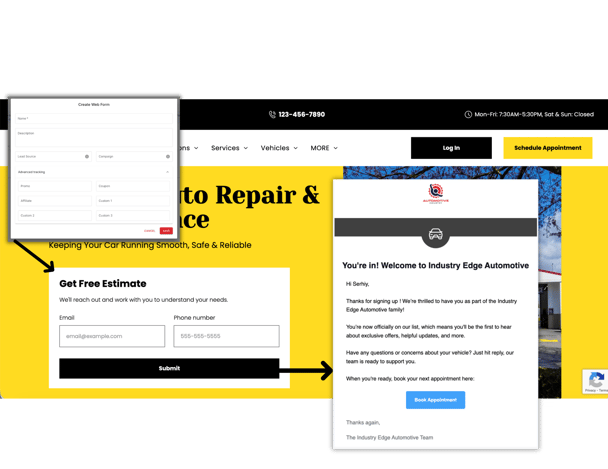
AutoOps Forms allow you to collect customer contact information via forms on your website. The collected contact information funnels directly into AutoOps and Steer; allowing you to enable automated texts and emails to send to those who submit their information via the web form.
Jump To:
-> How to Install the Web Form on your Website
> Custom UI - Automatic Field Retrieval
> Custom UI - Manual Field Management
-> How to Customize Automated Texts & Emails for Web Form Submissions
How to Create a Web Form
You can create multiple forms and install each form on a specific page of your website. Allowing you to connect form submissions to a specific marketing campaign or other web traffic metric you would like to track.
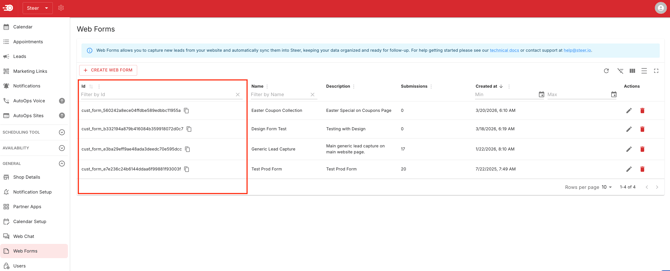
Each form you want to place on your website to collect submissions will first need to be created in AutoOps. A form ID will be generated as part of that process and must be used during installation.
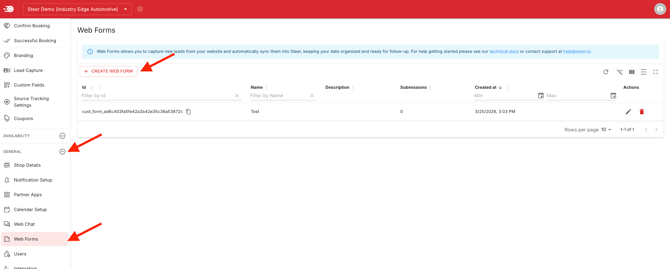
In AutoOps navigate to
1. General > Web Form
2. Click Create Web Form
-
- Form Name
- Form Description
- Lead Source (optional)
- Campaign (optional)
- Advanced Tracking (optional)
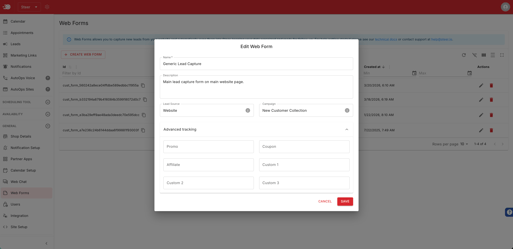
4. Click Save to create your Web Form
Once you have created a form, a Form ID will be generated. This Form ID will be used in the HTML that will power the form on your website.
You may need to contact your web provider for assistance installing the web form on your website.
How to Install the Web Form on your Website
You must have the AutoOps Booking tool installed on your website in order to utilize web forms on your website.
If you have not installed AutoOps on your website, view our Installation Guide.
You will need to enable the form(s) on your website via HTML. If you need assistance with this, please reach out to your website provider for support.
-> Custom UI - Automatic Field Retrieval
-> Custom UI - Manual Field Management
Supported Form Fields
You can utilize the form fields below in the HTML you input into your website to collect specific customer information via your web form.
The following form fields are supported for collecting information:
// One of email/phone required
phone// Optional
firstName
lastName// Optional, but if one provided all required
vehicleYear// String not number
vehicleMake
vehicleModel
Custom UI - Automatic Field Retrieval
For a simple custom setup, you can attach AutoOps Forms to a <form> element and it will capture fields by their name attribute.
Note: Be sure to insert your Form ID into the correct areas in the HTML added to your website. The Form ID can be located in AutoOps on the Web Form page.
At this time one of email or phone is required.
<!-- Your website's form --><form onsubmit="AutoOps.form.submit('{form_id_here}', event)">
<input name="email" type="email" />
<input name="phone" type="text" />
<button type="submit">Submit</button>
</form>
// Data captured by AutoOps Forms{
email: 'john@doe.com',
phone: '+12223334444'
}
Custom UI - Manual Field Management
If you want to manage the individual form values yourself you can provide them when submitting.
Note: Be sure to insert your Form ID into the correct areas in the HTML added to your website. The Form ID can be located in AutoOps on the Web Form page.
At this time one of email or phone is required.
<script>
  async function submit() {
    const emailInput = document.getElementById('emailField');
    await AutoOps.form.submit('{form_id_here}', { email: emailInput.value });
    emailInput.value = '';
  }
</script>

<input id="emailField" type="email" />
<button type="button" onclick="submit()">Submit</button>
Web Form Tracking Fields
AutoOps Forms will automatically capture common tracking fields. You can provide these fields in a combination of ways:
- Defining them when creating the form
- Adding them to the URL of the page you're submitting from
- Providing them manually when calling
AutoOps.form.submit()(example at bottom of page)
AutoOps forms will always capture these details automatically:
clientReferrer
submissionPage
utm_source
utm_medium
utm_campaign
utm_term
utm_content
gclid
gclsrc
wbraid
gbraid
fbclid
yclid
msclkid
ttclid
Some additional AutoOps-specific fields can be provided:
ao_leadSource
ao_campaign
ao_affiliate
ao_promo
ao_coupon
ao_custom1
ao_custom2
ao_custom3
Manually Providing Tracking Fields
Below is an example of providing tracking fields manually when calling AutoOps.form.submit():
AutoOps.form.submit(
  '{form_id_here}',
  formEventOrFieldData,
  { ao_custom1: 'some-tracking-value-here' } // <- Add tracking fields here
);
How to Customize Automated Texts & Emails for Web Form Submissions
In Steer navigate to,
-
Appointments > Notifications
-
Click Other
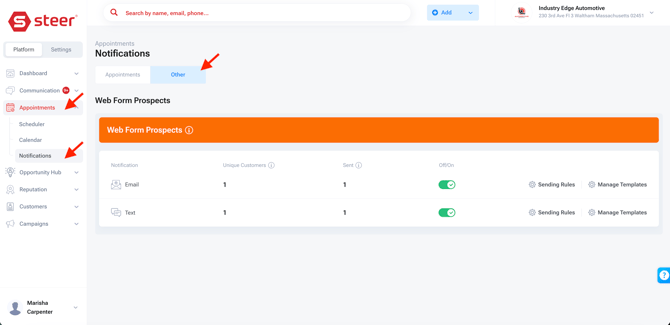
You can edit existing templates or create a new template for each marketing type.
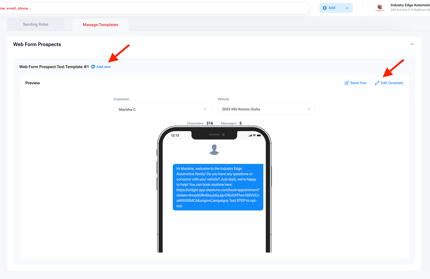
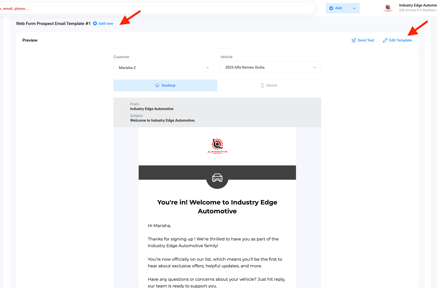
When toggled ON these messages will automatically send to those who fill out your web form.