
Direct Google Review Integration
Follow the steps below to set the Google integration up and begin responding to reviews in Steer.
⚙️✅ Access: You must be a Google Admin on your business profile to integrate your Google Business Profile in Steer.
Please Note: There may be a small delay between integrating and being able to respond to reviews in Steer. This is normal and should not cause concern. Please reach out to our team if the delay is longer than 24 hours
Jump To:
-> How to Connect my Google Business Profile to Steer
-> How to Reply to Google Reviews in Steer
⬇️ Watch the quick tutorial below 👀
How to Connect my Google Business Profile to Steer
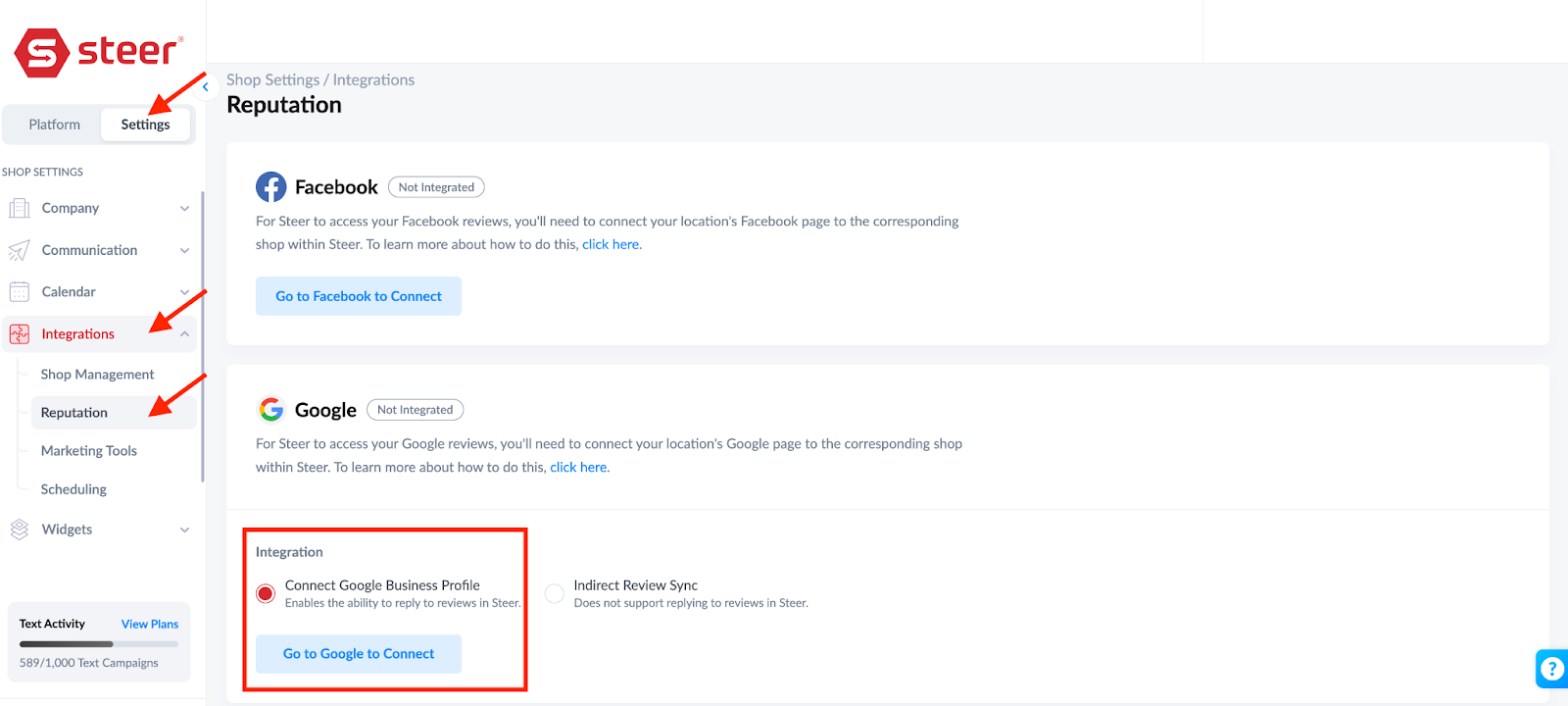
In Steer head to,- Settings > Integrations.
- Choose Reputation.
- Select Connect Google Business Profile.
- Click Go to Google to Connect.
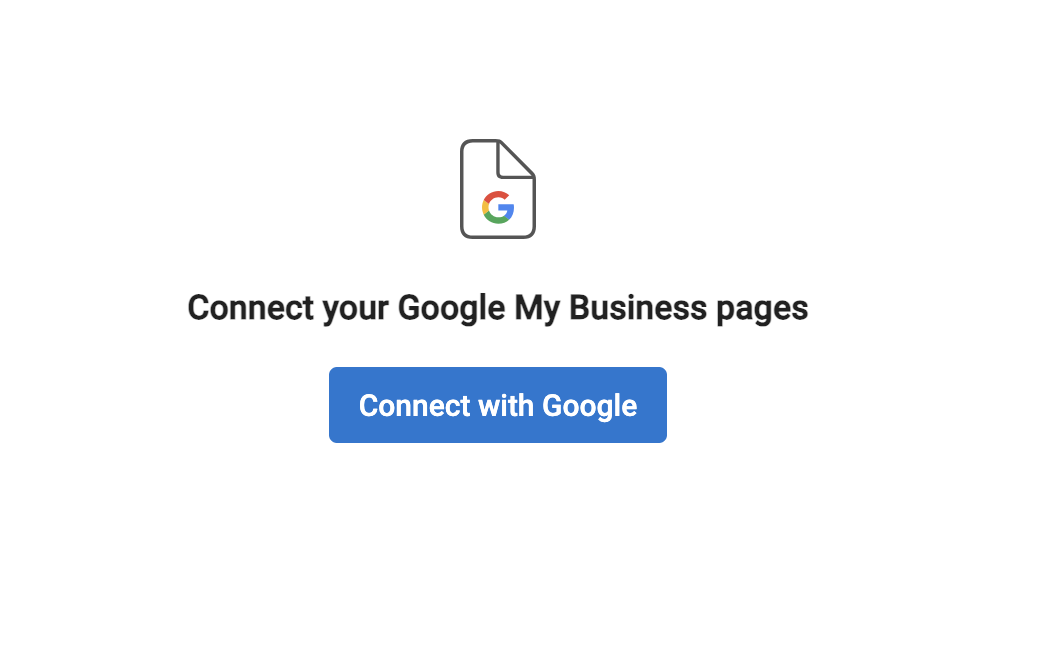
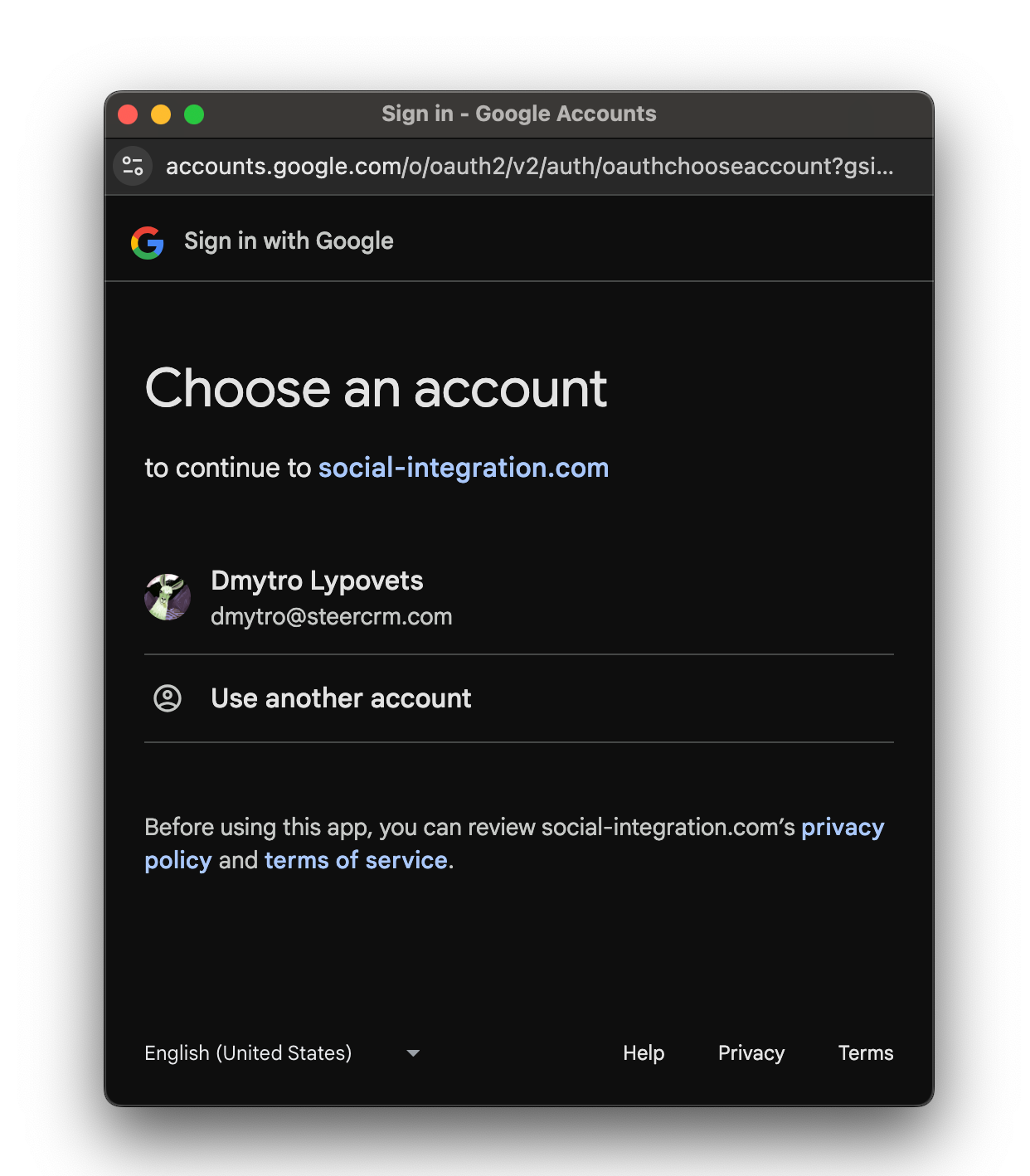
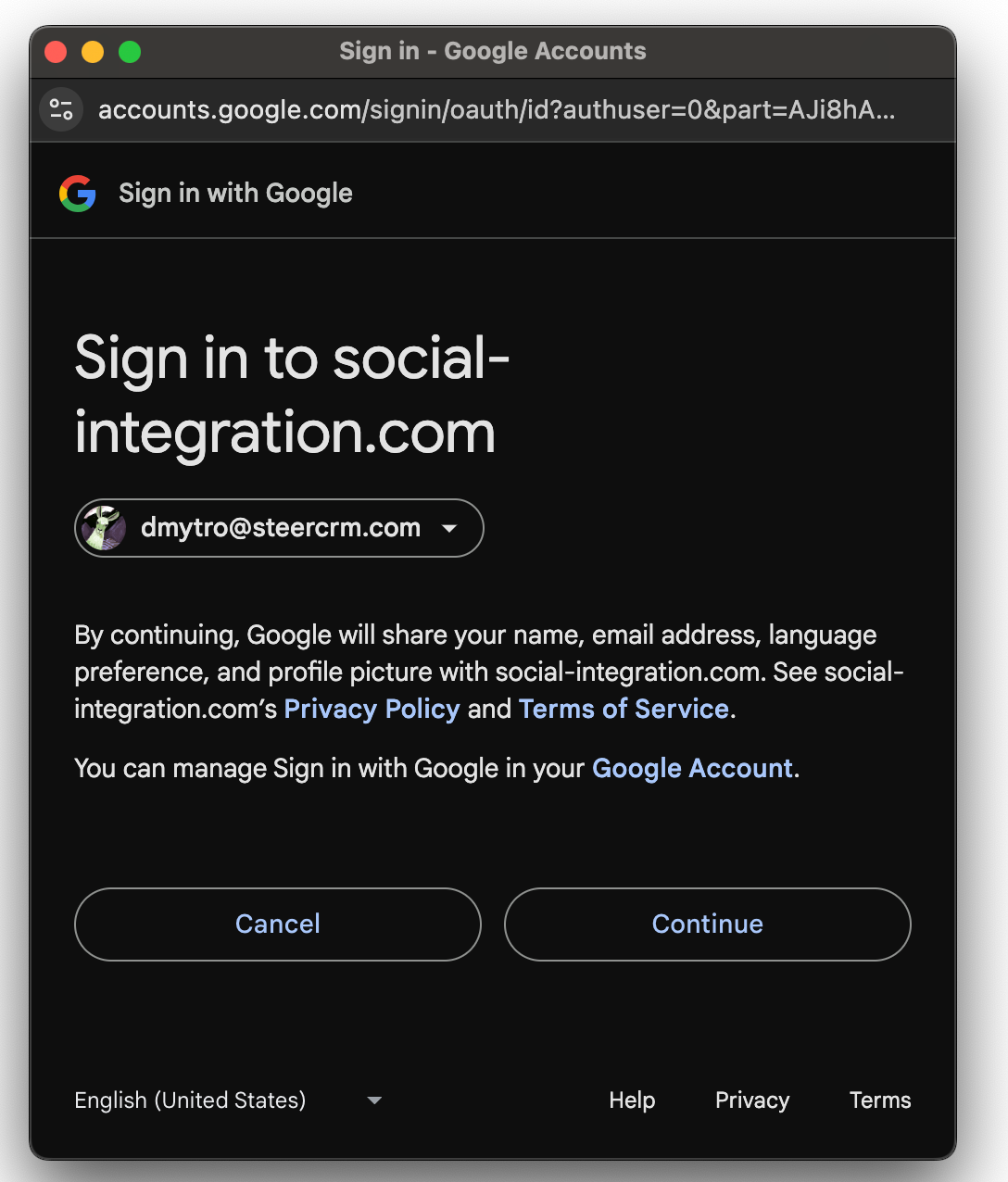
Once connected you will see a success message on the screen stating the profile is connected.
You will also see a successful connection message in your Steer settings.
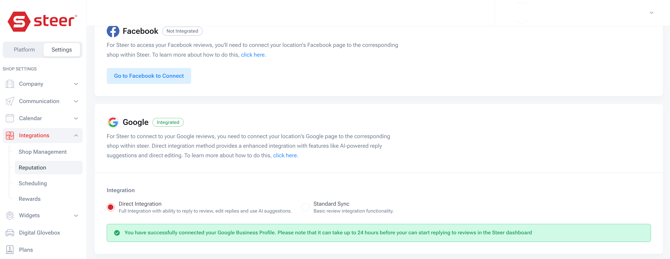
Please Note: There may be a small delay between integrating and being able to respond to reviews in Steer. This is normal and should not cause concern. Please reach out to our team if the delay is longer than 24 hours.
How to Reply to Google Reviews in Steer
To begin replying to Google reviews, go to Platform > Reputation > Reviews, and select the review(s) you would like to respond to. 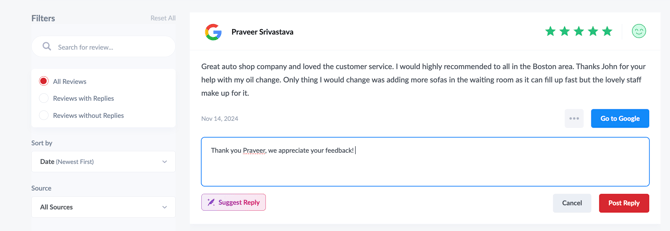
Please reach out to Customer Support if you have any questions.
- Click the ? when in the Steer platform to chat with our support team!