
Connect your existing BayIQ rewards program to Steer to view customer rewards balances, track membership information, and create targeted marketing campaigns based on loyalty data.
With your rewards program connected, your team can access customer rewards information directly in Steer, while customers can view their balances through their vehicle profile or Digital Glovebox.
Before You Begin
Before connecting your rewards program, make sure:
- Your shop has an active subscription to BayIQ (My Car Care Rewards) or Pit Crew.
- Your shop is successfully integrated with SMS in Steer.
- You have the credentials needed to connect your rewards program.
- You have Shop Admin or Tenant Owner permissions in Steer.
✅⚙️Important: Each shop can connect to only one rewards program at a time. If you already have a program connected, you'll need to disconnect it before connecting a different one.
Jump To:
How to Integrate BayIQ Loyalty into Steer
Managing Rewards Across Multiple Locations
Viewing Customer Rewards Information
Creating Customer Segments Using Rewards Data
How to Integrate BayIQ Loyalty into Steer
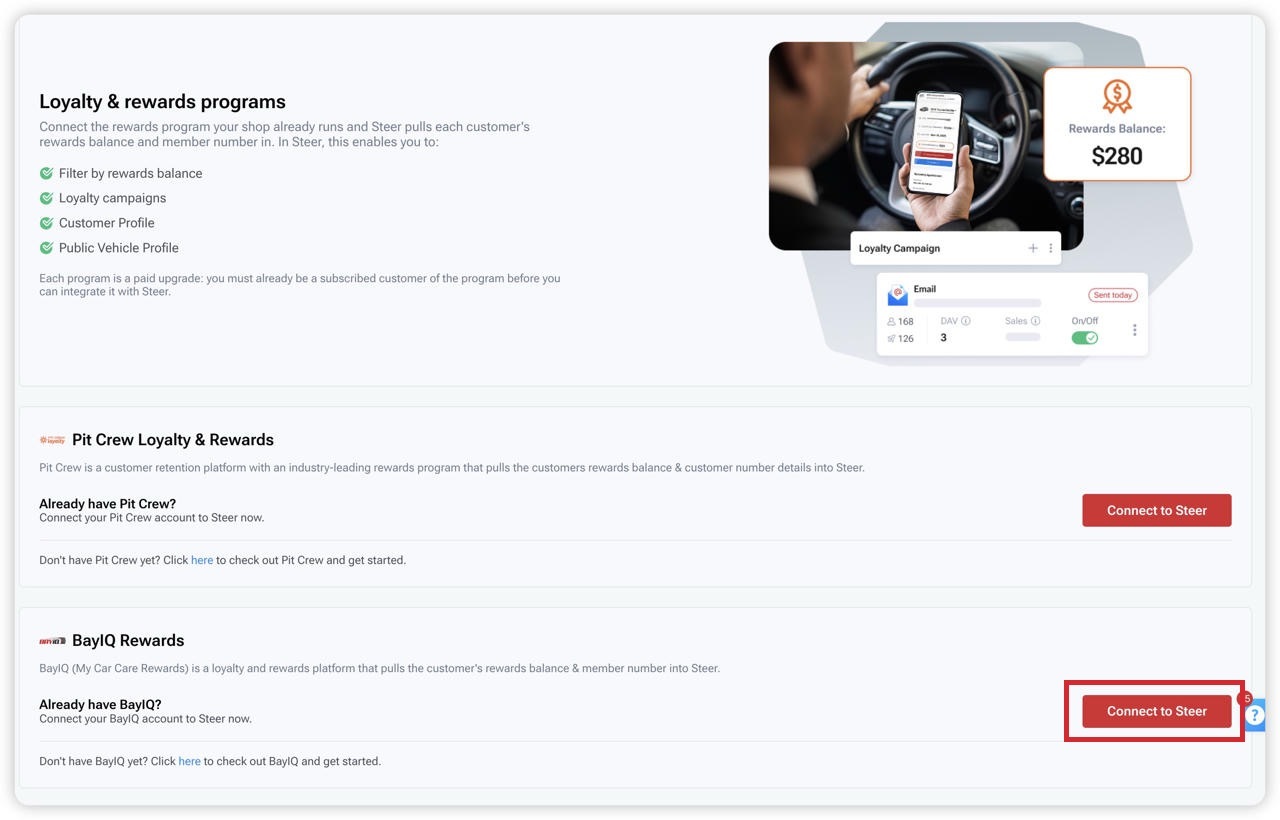
- Log in to Steer.
- Navigate to Settings > Integrations.
- Find Loyalty & rewards programs > BayIQ
- Click Connect to Steer.
- Enter your BayIQ credentials:
- Enter your BayIQ API Username.
- Enter your BayIQ API Password.
- Click Confirm.
Steer will verify your credentials with BayIQ before completing the connection.
If the credentials are incorrect, the connection will not be saved. Verify your information and try again.
Synching Rewards Data
Once connected, Steer automatically begins syncing your customers' rewards information, including:
- Rewards member number
- Current rewards balance
The initial sync may take a few minutes, depending on the number of customers in your shop. Rewards information will begin appearing as records are synced.
Once the connection is established and the sync completes, the integration will display Connected.

Manage Rewards Across Multiple Locations
If your shop operates multiple locations using the same BayIQ account, you can share your credentials across locations without entering them individually.
✅⚙️Note: Credential sharing is available for BayIQ only and requires Tenant Owner permissions.
Share BayIQ Credentials
- Navigate to Settings > Integrations > Loyalty & rewards programs.
- Locate your connected BayIQ integration.
- Click Share credentials.
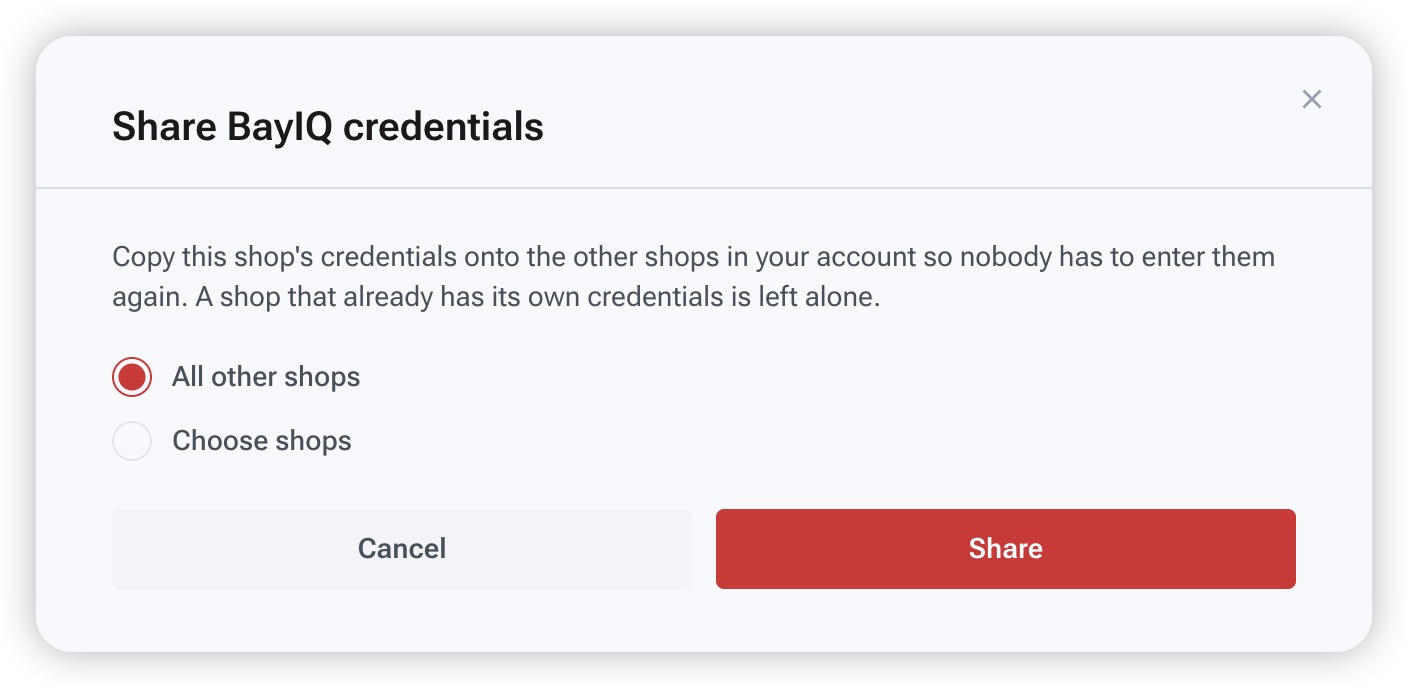
- Choose one of the following options:
- All other shops: Share credentials with all eligible locations in your account.
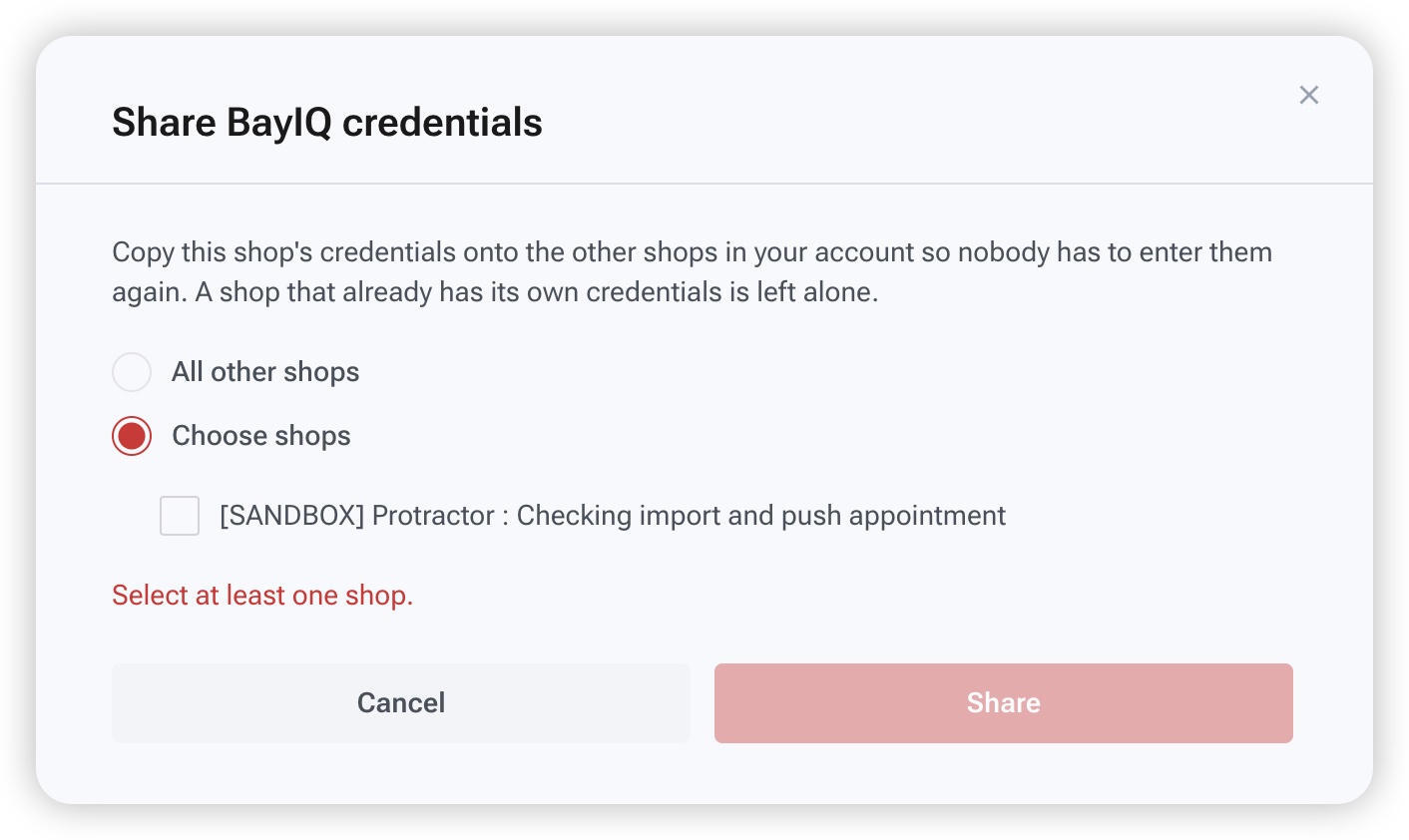
- Choose shops: Select the individual locations you want to connect.
- If choosing individual shops, select at least one location.
- Click Share.
Steer will confirm how many locations received the credentials.
Important: Sharing credentials will not overwrite existing credentials at another location.
 |
 |
Managing Shared Credentials
Locations connected through shared credentials will display Connected, with the sharing option labeled Using shared credentials.
If a location needs its own BayIQ credentials instead:
- Open the rewards integration settings for that location.
- Disconnect the existing integration.
- Select Connect to Steer.
- Enter the location's own BayIQ credentials.
- Confirm the connection.
Viewing Customer Rewards Information
Customer Profile
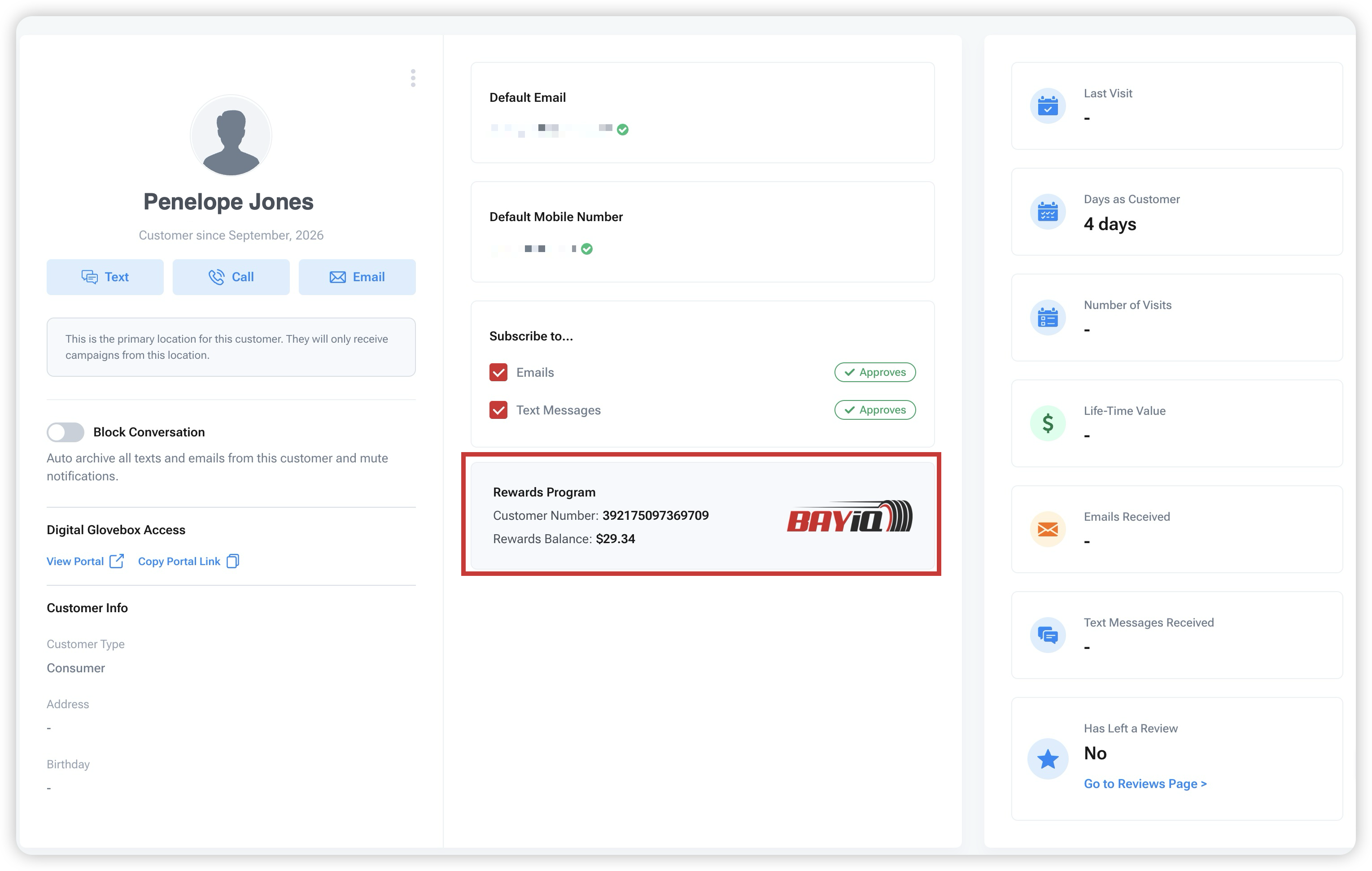
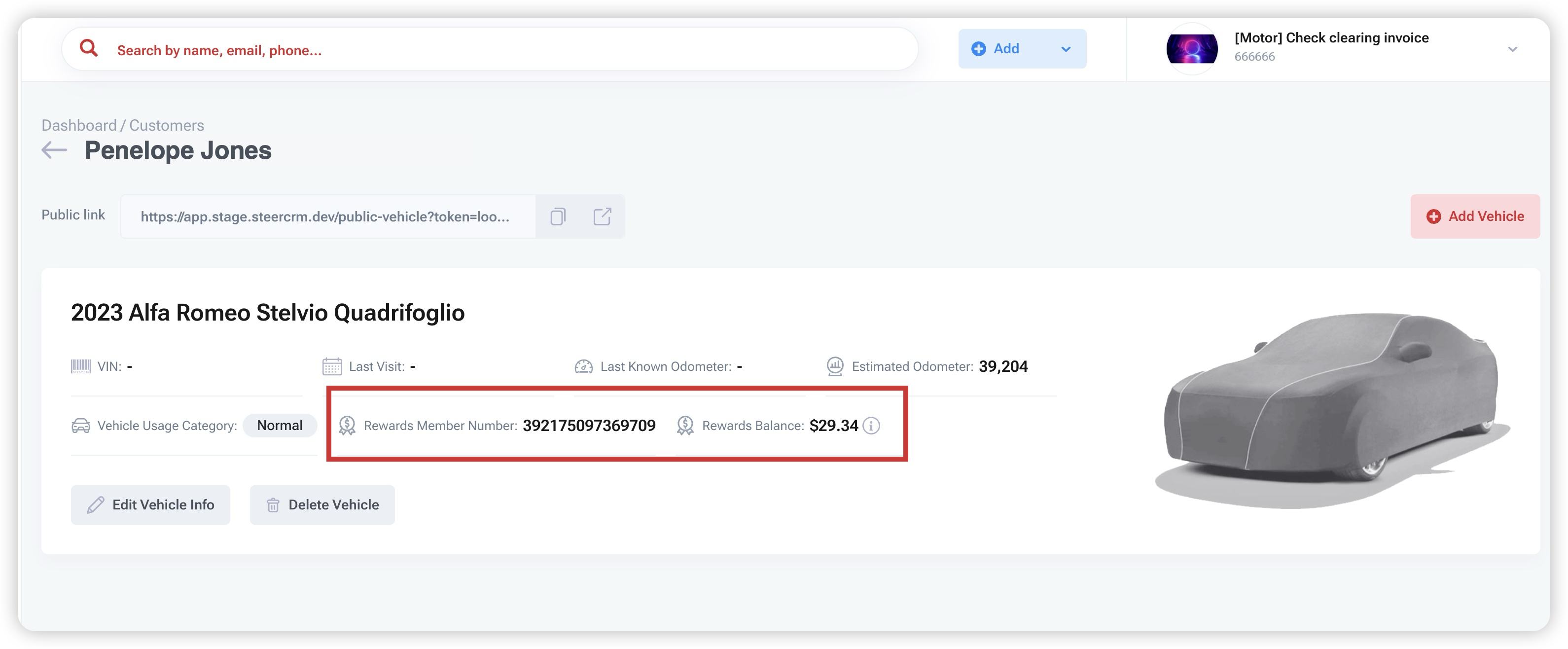
Open a customer's profile to find the Rewards Program card.
The card displays:
- Connected rewards program
- Rewards member number
- Rewards balance
Your team can quickly check a customer's rewards information without logging into a separate rewards portal.
Public Vehicle Page
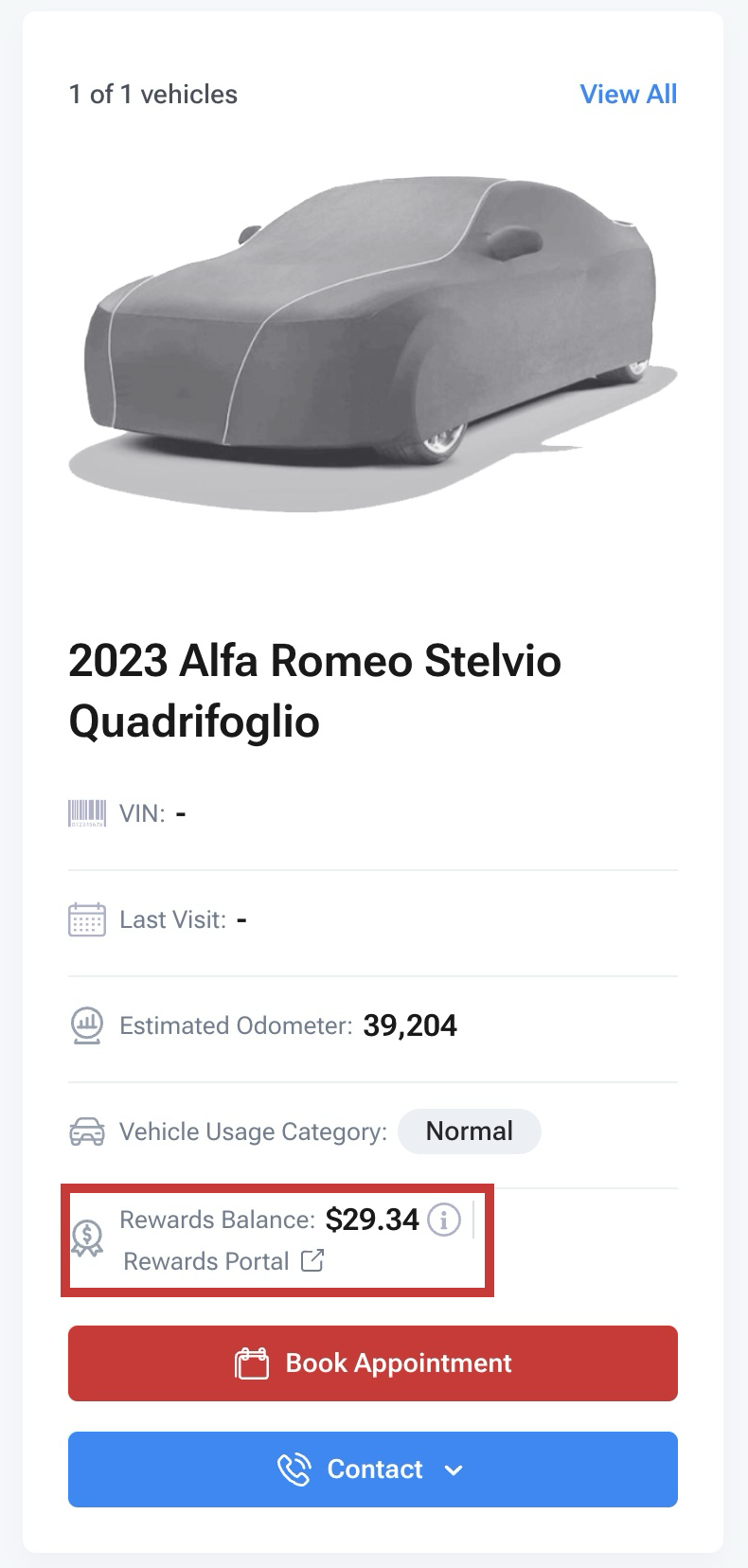
Customers can view their rewards balance directly from their public vehicle profile.
A Rewards Portal link allows customers to access their rewards provider's portal for additional information.
Digital Glovebox
Customers using Digital Glovebox can view their rewards balance on their vehicle card.
They can also select Open Portal to access their rewards program.
Using Customer Rewards Data in Campaigns
Filtering with rewards data
- Open Advanced Filters in Steer.
- Locate the Rewards section.
- Choose one or both available filters:
| Filter | Description |
|---|---|
| Rewards Program Subscription | Filter customers based on whether they are enrolled in a rewards program (Yes or No). |
| Reward Balance | Filter customers based on a dollar-value range of available rewards. |
You can combine rewards filters with other customer filters to create more specific audiences.
For example, you could identify customers who are enrolled in your rewards program, have more than $50 in available rewards, and haven't visited your shop in six months.
Sending Campaigns using rewards data
You can include each customer's rewards member number and balance in your email campaigns using personalization tokens.
- Open the Email Template Editor.
- Select the area of your email where you'd like to display rewards information.
- Insert the appropriate token:
| Token | Information displayed |
|---|---|
{rewardCardNumber.txt} |
Customer's rewards member number |
{rewardBalance.txt} |
Customer's current rewards balance |
Sample campaign idea 💡
Subject: You have rewards waiting!
Hi [Customer Name],
Did you know you have rewards available to use toward your next visit?
Your current rewards balance is {rewardBalance.txt}.
Your rewards member number is {rewardCardNumber.txt}.
Book your next appointment and make the most of your rewards!
Disconnecting BayIQ
If you need to change rewards providers or update your integration credentials, you'll need to disconnect your existing rewards program.
- Navigate to Settings > Integrations > Loyalty & rewards programs.
- Locate your connected program.
- Click Disconnect.
- Review the confirmation message.
- Confirm the disconnection.
After disconnecting, you can connect another supported rewards program or reconnect using updated credentials.