
Advanced Issue Menus allow you to engage and entice customers during the booking process in a new, exciting way! Include banners, images, pricing and more for your service options by creating advanced issue selections.
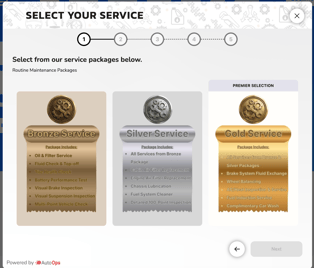
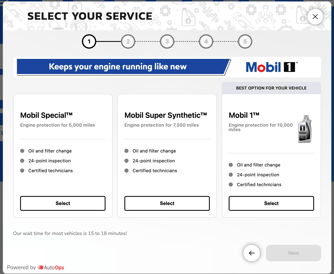
Jump To:
-> How to Create Advanced Issue Menus
-> How to Utilize Advanced Image Options
-> How to Customize Advanced Issue Menus
How to Create Advanced Issue Menus
In AutoOps Navigate to
1. Scheduling Tool > Issue Tree
2. Click into the service you would like to change to an Advanced Issue Menu.
a. This will pull you to the next screen to edit your service selections.
3. Click Edit when on the issue selection screen.
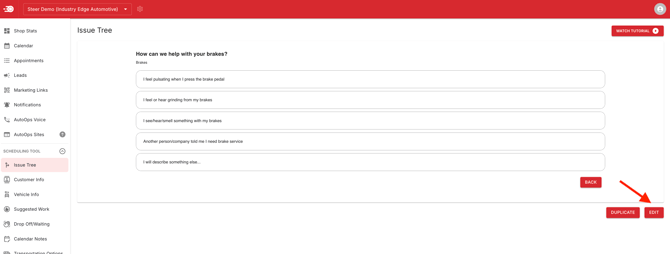
5. Toggle ON "Advanced Issue Selection"
a. Click Confirm Switch
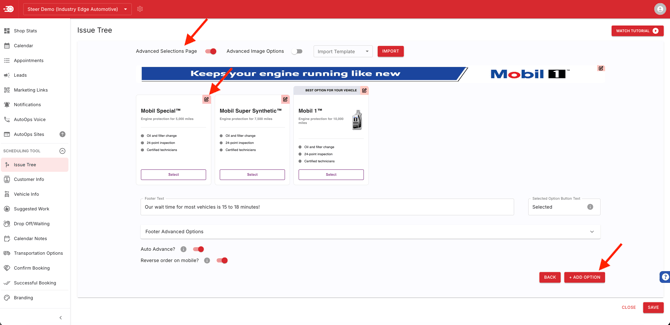
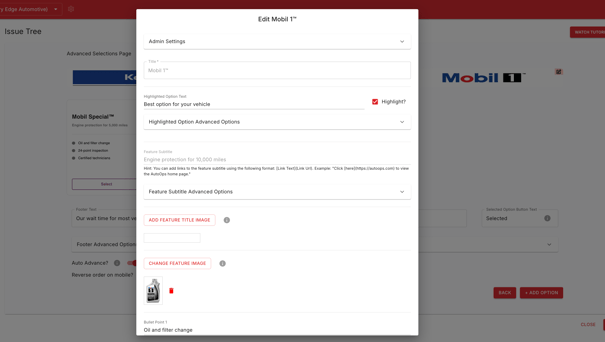
6. Begin crafting your advanced menu. You can add multiple options and customize each option by clicking the pencil icon next to each item. Be sure to attach your option to a service.
How to Utilize Advanced Image Options
When using Advanced Issue Menus for services, you can utilize Advanced Image options.
In AutoOps Navigate To
1. Scheduling Tool > Issue Tree
2. Click into the service you would like to change to an Advanced Image Menu
a. This will pull you to the next screen to edit your service selections.
3. Click Edit when on the issue selection screen
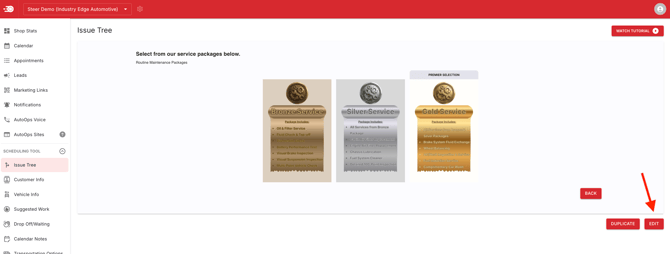
5. Toggle ON "Advanced Image Options".
a. Click Confirm Switch
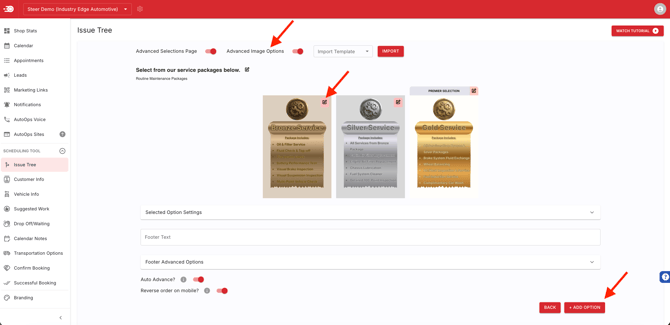
6. Begin crafting your advanced menu; you will utilize full crafted images for this option. Be sure to attach your options to a service.
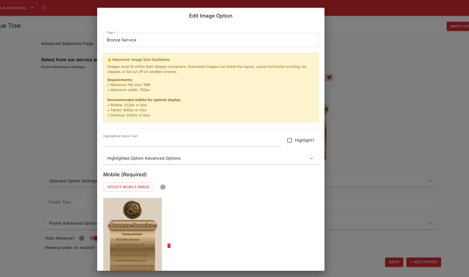
Image Size Guidelines:
Images must fit within their display containers. Oversized images can break the layout, cause horizontal scrolling, be clipped, or be cut off on smaller screens.
• Maximum file size: 1MB
• Maximum width: 750px
Recommended widths for optimal display:
• Mobile: 232px or less
• Tablet: 400px or less
• Desktop: 600px or less
How to Customize Advanced Issue Menus
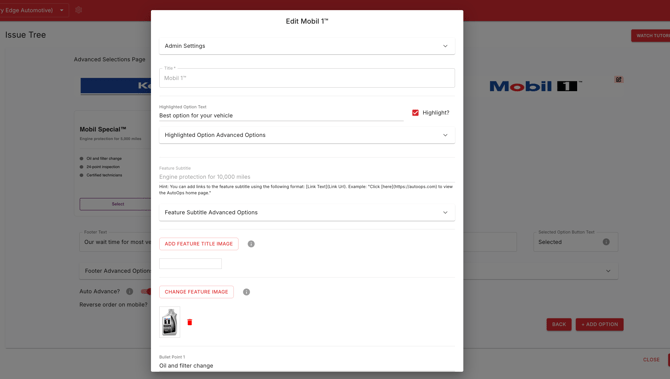
You can add multiple options and customize each option by clicking the pencil icon next to each item.
1. Click the pencil icon by the service you would like to edit.
2. Fill out the information and design for that service.
a. Be sure to attach your option to a service.
5. Save your changes.
6. Repeat for each option you would like to include in this service menu.