
Skip to content
English
  • There are no suggestions because the search field is empty.

Creating Your Q4 Marketing Outreach Calendar

Build your Q4 outreach plan with seasonal campaign ideas and suggested customer segments designed to bring customers back to your shop.

The holidays bring more travel, more promotions, and plenty of reasons to reconnect with customers. This guide gives you ready-to-use campaign ideas for October, November, and December, plus suggested customer segments to help you reach the right people with each message.

Aim to send at least two targeted campaigns each month. Use Smart Search to describe the customers you want to reach, or build your audience with filters like visit history, upcoming maintenance, deferred service, and open quotes.

From spooky service reminders to holiday travel and New Year maintenance, use these ideas to keep your shop top of mind and your calendar full through the end of the year.

Jump to:

October campaigns

November campaigns

December campaigns

Adding Segments to a Campaign

đź’ˇPlan, view, and get campaign inspiration in the Outreach Planner.


October Campaigns

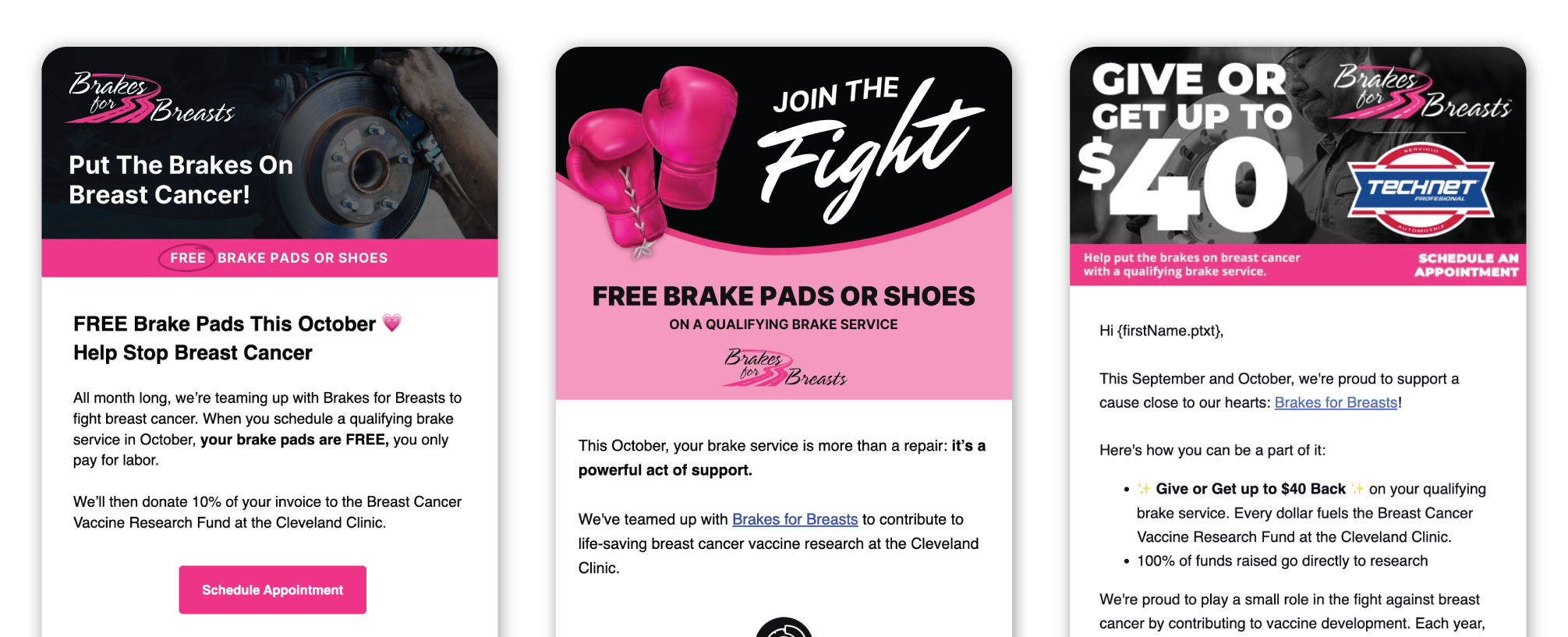
Brakes for Breasts is back

Brakes for Breasts brings auto repair shops together each October to support breast cancer research through brake service. If your shop is participating, use your campaign to share how you’re giving back while reminding customers to take care of lingering brake concerns.

This is the perfect combination of supporting an important cause and also giving your customers a reason to come in for deferred or upcoming brake services.
Brakes-for-Breasts-Templates02

Build Segment with Smart Search Build Segment withSetup Advanced Filters
  1. From the Dashboard, click Customers > Customer List

  2. Click the Smart Search button.

  3. Enter the text "Customers who haven't received brake service in the last 12 months".

  4. Click Find Customers.

  5. Save the group.

  6. Save as a Dynamic Group by selecting Filters again after reviewing the list, then click New Dynamic Group. Add a group name from Step 5.

  7. Click Save.

    1. From the Dashboard, click Customers.

    2. Click Filters, then select Advanced Filters.

    3. Select the Invoices filter.

    4. Enable the Invoice Search toggle.

    5. Enter  brakes as the invoice keyword.

    6. Select the Appointments filter.
    7. Enable the Days Since Appointments filter.
    8. Enter 0-365 as the date range
    9. Save the group.

    10. Save as a Dynamic Group by selecting Filters again after reviewing the list, then click New Dynamic Group. 

    11. Click Save.

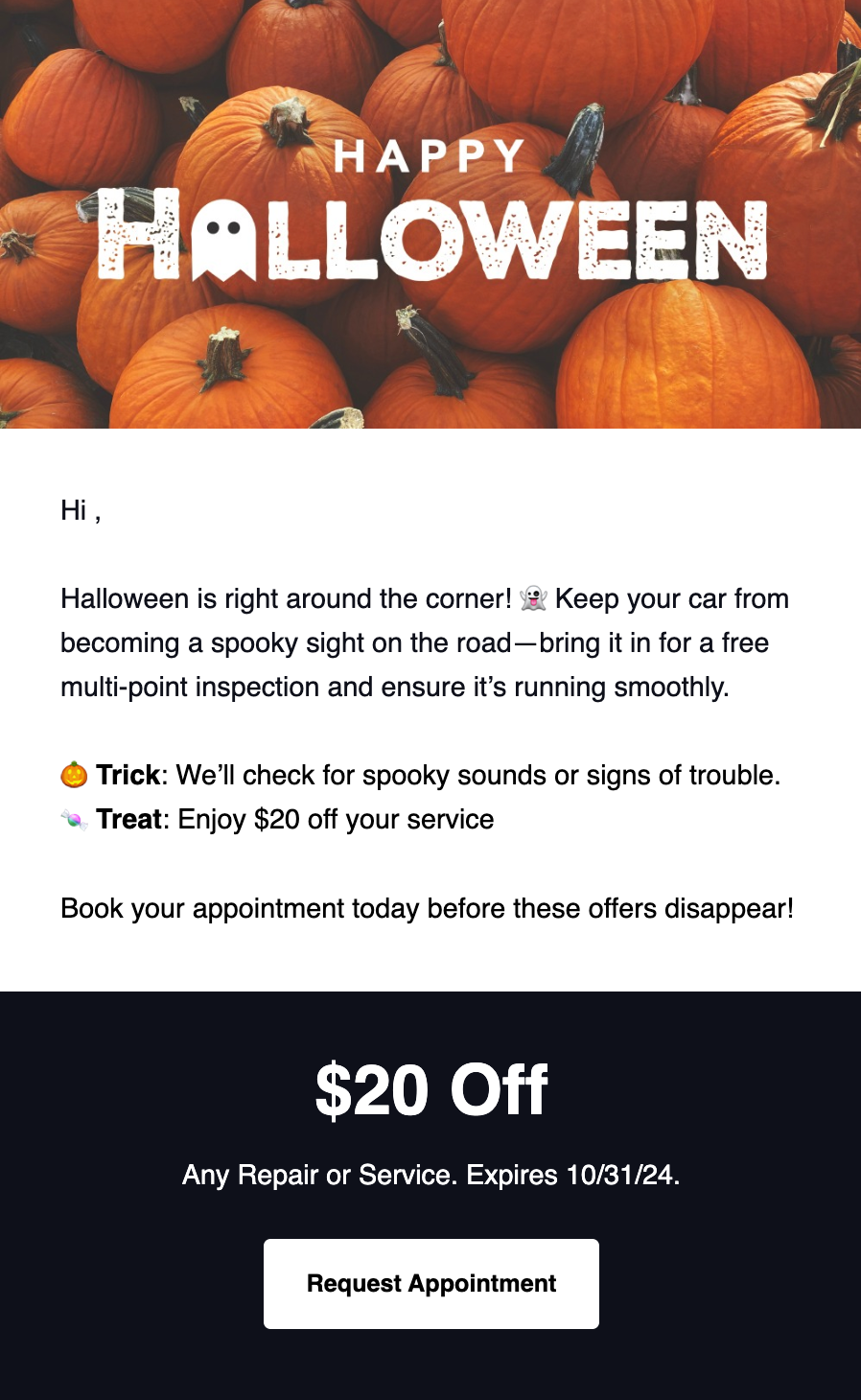
    Halloween Savings

    Don't let overdue repairs come back to haunt you! Halloween is a great time to give customers a nudge to return before the temperature drops.

    A few segments you could target:

    • Customers who haven't visited in 6-12 months
    • Customers with deferred service who don't have an upcoming appointment
    • Customers with maintenance coming due in the next 30 days
    Q4 Marketing Calendar_Halloween
    Build Segment with Smart Search Build Segment with Advanced Filters
    1. Login to Steer.

    2. From the Dashboard, click Customers > Customer List

    3. Click the Smart Search button.

    4. Enter the text "Customers who haven't visited in 6-12 months".
    5. Click Find Customers.
    6. Save the group.

    7. Save as a Dynamic Group by selecting Filters again after reviewing the list, then click New Dynamic Group. Add a group name from Step 6.

    8. Click Save.

    For customers who haven't visited in 6-12 months:

    1. From the Dashboard, click Customers.

    2. Click Filters, then select Advanced Filters.

    3. Expand the Customer Visits filter.
    4. Enable the Days Since Visit toggle.
    5. Enter a range of 180 - 365.
    6. Click Show Results.
    7. Save the segment.

    Customers with deferred service who don't have an upcoming appointment

    1. From the Dashboard, click Customers.

    2. Click Filters, then select Advanced Filters.

    3. Expand the Deferred Services filter.
    4. Toggle the Deferred Services filter to Yes.
    5. Expand the Appointments filter.
    6. Toggle the Has Upcoming Appointment Scheduled filter to Yes.
    7. Click Show Results.
    8. Save the segment.

    Customers with maintenance coming due in the next 30 days.

    1. From the Dashboard, click Customers.

    2. Click Filters, then select Advanced Filters.

    3. Expand the Maintenance Reminders filter.
    4. Enable the Days Until Maintenance Reminder is Due toggle.
    5. Enter a range of 0 - 30.
    6. Click Show Results.
    7. Save the segment.

    November Campaigns

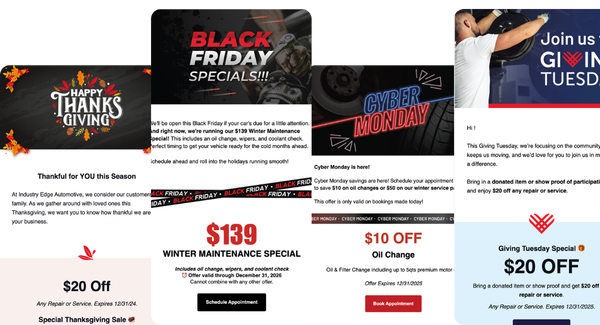
    November is packed with savings and promotions, and your shop can take advantage of the momentum. Plan your holiday outreach around Thanksgiving, Black Friday, Cyber Monday, and Giving Tuesday, then target each campaign to a different audience so customers get offers that make sense for them.
    Q4 Marketing Calendar_November Campaigns

    Thanksgiving

    Holiday road trip? Make sure the car is ready, too. Reach customers before they hit the road with a maintenance or travel-ready offer.

    Who to reach: Customers with upcoming maintenance or deferred service who haven’t booked.

    Build Segment with Smart Search Build Segment with Advanced Filters
    1. Login to Steer.

    2. From the Dashboard, click Customers > Customer List

    3. Click the Smart Search button.

    4. Enter the text "Customers with upcoming maintenance or deferred service who haven’t booked.".
    5. Click Find Customers.
    6. Save the group (i.e. Outstanding Quotes > 7 Days).

    7. Save as a Dynamic Group by selecting Filters again after reviewing the list, then click New Dynamic Group. Add a group name from Step 6.

    8. Click Save.
    1. Login to Steer.
    2. From the Dashboard, click Customers.
    3. Click Filters, then select Advanced Filters.
    4. Select the Deferred Services filter.
    5. Enable to Deferred Services toggle to Yes.
    6. Expand the Maintenance Reminders filter.
    7. Enable the Days Until Maintenance Reminder is Due toggle.
    8. Enter a range of 0 - 30.
    9. Expand the Appointments filter.
    10. Toggle the Has Upcoming Appointment Scheduled filter to Yes.
    11. Click Show Results.

    Black Friday

    Bring the deals to the service bay. Use a limited-time offer to give customers who’ve been putting off a visit a reason to come back.

    Who to reach: Customers who haven’t visited in 6–12 months or have a recent quote they haven’t booked.

    Build Segment with Smart Search Build Segment with Advanced Filters
    1. Login to Steer.

    2. From the Dashboard, click Customers > Customer List

    3. Click the Smart Search button.

    4. Enter the text "Customers who haven’t visited in 6–12 months or have a recent quote they haven’t booked.".
    5. Click Find Customers.
    6. Save the group.

    7. Save as a Dynamic Group by selecting Filters again after reviewing the list, then click New Dynamic Group. Add a group name from Step 6.

    8. Click Save.
    1. Login to Steer.
    2. From the Dashboard, click Customers.
    3. Click Filters, then select Advanced Filters.
    4. Select the Invoices and Quotes filter.
    5. Enable to Days Since Quote toggle.
    6. Set the value range from 0 - 1000
    7. Select the Customer Visits filter.
    8. Enable to Days Since Last Visit toggle.
    9. Set the value range from 180 - 365
    10. Click Show Results.

    Cyber Monday

    Keep the savings going with an offer customers can claim now for upcoming service.

    Who to reach: Customers with maintenance due in the next 30–60 days who don’t have an upcoming appointment.

    Build Segment with Smart Search Build Segment with Advanced Filters
    1. Login to Steer.

    2. From the Dashboard, click Customers > Customer List

    3. Click the Smart Search button.

    4. Enter the text "Customers with maintenance due in the next 30–60 days who don’t have an upcoming appointment".
    5. Click Find Customers.
    6. Save the group.

    7. Save as a Dynamic Group by selecting Filters again after reviewing the list, then click New Dynamic Group. Add a group name from Step 6.

    8. Click Save.
    1. Login to Steer.
    2. From the Dashboard, click Customers.
    3. Click Filters, then select Advanced Filters.
    4. Select the Maintenance Remidners filter.
    5. Enable to Days Until Maintenance Reminder is Due toggle.
    6. Set the value range from 30 - 60
    7. Select the Appointments filter.
    8. Enable to Has Upcoming Appointment Scheduled toggle to NO.
    9. Click Show Results.

    Giving Tuesday

    Giving back? Use Giving Tuesday to highlight a local cause, donation drive, or community initiative and invite customers to join in.

    Who to reach: Repeat customers who have visited your shop within the last year.

    Build Segment with Smart Search Build Segment with Advanced Filters
    1. Login to Steer.

    2. From the Dashboard, click Customers > Customer List

    3. Click the Smart Search button.

    4. Enter the text "Repeat customers who have visited your shop within the last year".
    5. Click Find Customers.
    6. Save the group.

    7. Save as a Dynamic Group by selecting Filters again after reviewing the list, then click New Dynamic Group. Add a group name from Step 6.

    8. Click Save.
    1. Login to Steer.
    2. From the Dashboard, click Customers.
    3. Click Filters, then select Advanced Filters.
    4. Select the Customer Visits filter.
    5. Enable to Days Since Last Visit toggle.
    6. Set the value range from 0 - 365
    7. Click Show Results.

    December Campaigns

    Finish the year strong by helping customers get road-ready for holiday travel and ahead of maintenance for the new year. Use December to fill open bays now and start building your January calendar.

    Happy Holiday Travel

    Headed home for the holidays? Help customers make sure their car is ready for the trip with a maintenance, tire, or brake reminder.

    Who to reach: Customers with upcoming maintenance or deferred tire or brake work who haven’t booked.

    Q4 Marketing Calendar_Happy Holidays

    Build Segment with Smart Search Build Segment with Advanced Filters
    1. Login to Steer.

    2. From the Dashboard, click Customers > Customer List

    3. Click the Smart Search button.

    4. Enter the text "Customers with upcoming maintenance or deferred tire or brake work who haven’t booked.".
    5. Click Find Customers.
    6. Save the group.

    7. Save as a Dynamic Group by selecting Filters again after reviewing the list, then click New Dynamic Group. Add a group name from Step 6.

    8. Click Save.
    1. Login to Steer.

    2. From the Dashboard, click Customers.

    3. Click Filters, then select Advanced Filters.

    4. Select the Deferred Services filter.

    5. Enable the Deferred Services toggle to YES.

    6. Enter deferred service search terms Tire Service and Brake Repair.

    7. Select the Maintenance Reminders filter.
    8. Enter maintenance reminders search terms Tire Service and Brake Repair.
    9. Select the Appointments filter.
    10. Enable to Has Upcoming Appointment Scheduled toggle to NO.
    11. Click Show Results. 

    New Year

    New year, fresh start. Encourage customers who are overdue for a visit to get their maintenance back on track.

    Who to reach: Customers who haven’t visited in 6–12 months or have upcoming or deferred maintenance.

    Build Segment with Smart Search Build Segment with Advanced Filters
    1. Login to Steer.

    2. From the Dashboard, click Customers > Customer List

    3. Click the Smart Search button.

    4. Enter the text "Customers who haven’t visited in 6–12 months or have upcoming or deferred maintenance".
    5. Click Find Customers.
    6. Save the group.

    7. Save as a Dynamic Group by selecting Filters again after reviewing the list, then click New Dynamic Group. Add a group name from Step 6.

    8. Click Save.
    1. Login to Steer.

    2. From the Dashboard, click Customers.

    3. Click Filters, then select Advanced Filters. 

    4. Select the Maintenance Reminders filter.
    5. Enable the Days Until Maintenance Reminder is Due toggle.
    6. Enter a range of 0 - 1000.
    7. Select the Customer Visits filter.
    8. Enable the Days Since Last Visit toggle.
    9. Enter a range of 180 - 365.
    10. Click Show Results. 


    Learn about sending maintenance reminders in our article here.

    Adding Segments to Your Campaign

    Ready to build your campaign? Once you've created segments for your campaign, you can get your campaign out the door and into your customers' inboxes. Here's how to add the segment to a campaign:

    1. Click Campaigns, then select Active.
    2. Choose the Campaign Category for your campaign (i.e. Outreach), click New Segment.
    3. Add a name for your campaign segment (i.e. Lifetime Visit Value $500+).
    4. Select the Select Customer Group tab to choose one of your newly created segments.
    5. Click Save.

    More info on creating customer groups, campaigns, and segments can be found here.