Skip to content
English
  • There are no suggestions because the search field is empty.

Creating Your Q2 Marketing Outreach Calendar

How to keep your marketing momentum going in Q2 with ready-to-send campaigns.

Q2 is one of the busiest driving seasons of the year, making it a key opportunity to bring customers back at the right time. Building on the momentum from Q1, consistent outreach helps you stay top of mind, convert deferred and overdue services, and keep a steady flow of vehicles coming through your bays.

This guide gives you ready-to-use campaigns for each month, along with suggested audiences, so you can reach the right customers with the right message.

Jump to:

April campaigns

May campaigns

June campaigns

Adding Segments to a Campaign


April Campaigns

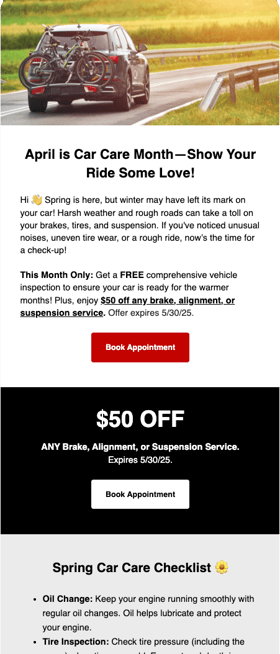
Car Care Month

Q2 Marketing Calendar_April_Car Care Month02

As you may know, April is Car Care Month! It's also a great time to help customers reset maintenance habits after winter driving. A proactive check-in helps catch hidden wear early and reinforces your shop as a trusted partner in their vehicle’s care.

Best practices for this campaign:

  • Target customers whose last service was 6+ months or 3,000+ miles ago

  • Target customers with vehicles 5+ years old

  • Promote seasonal needs like AC check, tire rotation, or spring fluid flushing


Send Based on Mileage Send Based on Vehicle Age Setup Advanced Filters

Learn about sending maintenance reminders in our article here.
  1. From the Dashboard, click Customers > Customer List

  2. Click the Smart Search button.

  3. Enter the text "Customers with vehicles older than 5 years".

  4. Click Find Customers.

  5. Save the group (i.e. Vehicles Older Than 5 Years).

  6. Save as a Dynamic Group by selecting Filters again after reviewing the list, then click New Dynamic Group. Add a group name from Step 5.

  7. Click Save.

    1. From the Dashboard, click Customers.

    2. Click Filters, then select Advanced Filters.

    3. Select the Vehicle Data filter.

    4. Enable the Search Vehicles By toggle.

    5. Enter a year range of 2000 - 2020 to target vehicles older than 5 years, then click Show Results.

    6. Save the group (i.e. 12 Month Deferred Service).

    7. Save as a Dynamic Group by selecting Filters again after reviewing the list, then click New Dynamic Group

    8. Click Save.


    April Fool's

    Q2 Marketing Calendar_April_April Fools


    Break through the noise with something unexpected, and give customers a light reason to book.

    This campaign pairs a playful message with a $50 repair offer (or whatever offer you want to give!), making it more likely customers act now instead of putting off service.

    This is less about big jobs and more about driving fast action + filling near-term gaps

    Best Practices for this campaign:

    • Target customers who haven't received an email in > 90 days.
    • Search "april" in the email or text library to snag this template

    Build Segment with Smart Search Build Segment with Advanced Filters
    1. Login to Steer.

    2. From the Dashboard, click Customers > Customer List

    3. Click the Smart Search button.

    4. Enter the text "Customers who haven't received an email in > 90 days".
    5. Click Find Customers.
    6. Save the group (i.e. Customers No Email > 90 Days).

    7. Save as a Dynamic Group by selecting Filters again after reviewing the list, then click New Dynamic Group. Add a group name from Step 6.

    8. Click Save.
    1. Login to Steer.
    2. From the Dashboard, click Customers.
    3. Click Filters, then select Advanced Filters.
    4. Select the Messaging filter.
    5. Enable the Days Since Email Received toggle.
    6. Enter a value range of 91 - 10,000
    7. Click Show Results.
    8. Save the group (i.e. Customers No Email > 90 Days).
    9. Save as a Dynamic Group by selecting Filters again after reviewing the list, then click New Dynamic Group. Add a group name from Step 8.
    10. Click Save.

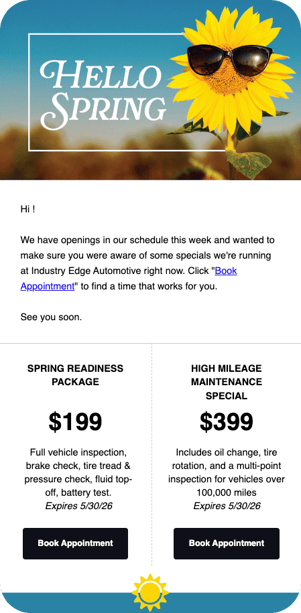
    Spring Break

    Q2 Marketing Calendar_April_Spring Savings


    Catch customers before they hit the road, and before small issues turn into bigger problems.

    This campaign encourages drivers to take care of overdue or previously declined services ahead of spring break travel, when reliability matters most.

    Best Practices for this campaign:

    • Target customers with deferred services or no visit in > 4 months. 

    • Follow up with a text in 2 days to reach customers who haven't booked
    • Text and email templates are in the campaign library - search "spring" to get started.
    Build Segment with Smart Search Build Segment with Advanced Filters
    1. Login to Steer.

    2. From the Dashboard, click Customers > Customer List

    3. Click the Smart Search button.

    4. Enter the text "Customers with deferred services and no visit in > 4 months.
    5. Click Find Customers.
    6. Save the group (i.e. Deferred Services and no visit > 4 months).

    7. Save as a Dynamic Group by selecting Filters again after reviewing the list, then click New Dynamic Group. Add a group name from Step 6.

    8. Click Save.
    1. Login to Steer.
    2. From the Dashboard, click Customers.
    3. Click Filters, then select Advanced Filters.
    4. Select the Days Since Last Visit filter.
    5. Enter a value range of 120 - 365
    6. Select the Deferred Services filter.
    7. Enable to Deferred Service toggle.
    8. Click Show Results.
    9. Save the group (i.e. Deferred Services and no visit > 4 months).
    10. Save as a Dynamic Group by selecting Filters again after reviewing the list, then click New Dynamic Group. Add a group name from Step 9.
    11. Click Save.

    May Campaigns

    Mother's Day

    Q2 Marketing Calendar_May_Mothers Day


    Give customers a meaningful way to take something off Mom’s plate.

    This campaign encourages customers to take care of overdue or previously recommended services, positioning it as a simple way to make sure her vehicle is safe and reliable.

    Best Practices for this campaign:

    • Target customers with quotes older than 7 days 
    • Follow up with a text in 2 days to reach customers who haven't booked
    • Text and email templates are in the campaign library - search "spring" to get started.


    Build Segment with Smart Search Build Segment with Advanced Filters
    1. Login to Steer.

    2. From the Dashboard, click Customers > Customer List

    3. Click the Smart Search button.

    4. Enter the text "Customers with quotes older than 7 days".
    5. Click Find Customers.
    6. Save the group (i.e. Outstanding Quotes > 7 Days).

    7. Save as a Dynamic Group by selecting Filters again after reviewing the list, then click New Dynamic Group. Add a group name from Step 6.

    8. Click Save.
    1. Login to Steer.
    2. From the Dashboard, click Customers.
    3. Click Filters, then select Advanced Filters.
    4. Select the Quotes filter.
    5. Enable to Days Since Quote toggle.
    6. Enter a value range of 7 - 365.
    7. Click Show Results.
    8. Save the group (i.e. Outstanding Quotes > 7 Days).
    9. Save as a Static Group. Check the box at the Top Left of your filtered list, then click New Static Group. Add a group name from Step 8.
    10. Click Save.

    Memorial Day

    Q2 Marketing Calendar_May_Memorial Day


    Memorial Day marks the start of summer road trip season.

    Whether you want to promote inspections, tires, brakes, or general savings, now is the time to reach customers before they hit the road.

    Choose the campaign that fits your shop’s goals and start filling your bays ahead of the holiday rush.

    Best Practices for this campaign:

    • Target customers with deferred service and no visit in 4–6 months
    • Pair with a text 2-3 days later for customers who haven't booked 
    Build Segment with Smart Search Build Segment with Advanced Filters
    1. Login to Steer.

    2. From the Dashboard, click Customers > Customer List

    3. Click the Smart Search button.

    4. Enter the text "Customers with quotes older than 7 days".
    5. Click Find Customers.
    6. Save the group (i.e. Deferred Service and No Visit 4-6 Months).

    7. Save as a Dynamic Group by selecting Filters again after reviewing the list, then click New Dynamic Group. Add a group name from Step 6.

    8. Click Save.
    1. Login to Steer.
    2. From the Dashboard, click Customers.
    3. Click Filters, then select Advanced Filters.
    4. Select the Deferred Services filter.
    5. Enable the Deferred Services toggle.
    6. Click the Customer Visits filter.
    7. Enable the Days Since Last Visit toggle.
    8. Enter a value range of 120 - 180.
    9. Click Show Results.
    10. Save the group (i.e. Deferred Service and No Visit 4-6 Months).
    11. Save as a Dynamic Group by selecting Filters again after reviewing the list, then click New Dynamic Group. Add a group name from Step 10.
    12. Click Save.

    Victoria Day (Canada)

    Q2 Marketing Calendar_Mary_Victoria Day


    Victoria Day weekend marks the unofficial start of summer driving, and one of the first big opportunities to bring customers in before travel picks up.

    Whether you want to promote inspections, tires, brakes, or seasonal savings, now is the time to reach customers before the long weekend hits.

    Best Practices for this campaign:

    • Target customers with deferred service and no visit in 4–6 months
    • Target customers with deferred service and no visit in 4–6 months
    • Pair with a text 2-3 days later for customers who haven't booked 
    Build Segment with Smart Search Build Segment with Advanced Filters
    1. Login to Steer.

    2. From the Dashboard, click Customers > Customer List

    3. Click the Smart Search button.

    4. Enter the text "Customers with quotes older than 7 days".
    5. Click Find Customers.
    6. Save the group (i.e. Deferred Service and No Visit 4-6 Months).

    7. Save as a Dynamic Group by selecting Filters again after reviewing the list, then click New Dynamic Group. Add a group name from Step 6.

    8. Click Save.
    1. Login to Steer.
    2. From the Dashboard, click Customers.
    3. Click Filters, then select Advanced Filters.
    4. Select the Deferred Services filter.
    5. Enable the Deferred Services toggle.
    6. Click the Customer Visits filter.
    7. Enable the Days Since Last Visit toggle.
    8. Enter a value range of 120 - 180.
    9. Click Show Results.
    10. Save the group (i.e. Deferred Service and No Visit 4-6 Months).
    11. Save as a Dynamic Group by selecting Filters again after reviewing the list, then click New Dynamic Group. Add a group name from Step 10.
    12. Click Save.


    June Campaigns

    Juneteenth

    Q2 Marketing Calendar_June_Juneteenth


    Juneteenth is an opportunity to connect with your customers in a meaningful way; without a promotion.

    This campaign helps you show appreciation, recognize the importance of the day, and reinforce your shop as part of the local community.

    Staying visible in moments like this builds trust and keeps your shop top of mind when customers are ready to book.

    Best practices for this campaign:

    • Target all active customers from the past 12 months.

    • Choose only either text or email - no need to send both for this campaign.
    • Search "juneteenth" in the template library for text and email ready templates
    Build Segment with Smart Search Build Segment with Advanced Filters
    1. Login to Steer.

    2. From the Dashboard, click Customers > Customer List

    3. Click the Smart Search button.

    4. Enter the text "All customers who have visited in the last 12 months".
    5. Click Find Customers.
    6. Save the group (i.e. All Customers Visited in last 12 months).

    7. Save as a Dynamic Group by selecting Filters again after reviewing the list, then click New Dynamic Group. Add a group name from Step 6.

    8. Click Save.
    1. Login to Steer.

    2. From the Dashboard, click Customers.

    3. Click Filters, then select Advanced Filters.

    4. Select the Customer Visits filter.

    5. Enable the Days Since Last Visit toggle.

    6. Enter a range of 0 - 365.

    7. Click Show Results.

    8. Save the group (i.e. All Customers Visited in last 12 months).

    9. Save as a Dynamic Group by selecting Filters again after reviewing the list, then click New Dynamic Group. Add a group name from Step 8.

    10. Click Save.

    Father's Day

    Q2 Marketing Calendar_Fathers Day

    Dads are usually the ones keeping everything running, and this is a chance to return the favor.

    Father’s Day is a great opportunity to promote recommended services, upgrades, or preventative maintenance that keep his vehicle performing at its best.

    Whether it’s routine service or something that’s been put off, a quick visit now helps avoid bigger issues down the road.

    Best practices for this campaign

    • Target customers with high LTV who haven't visited in > 4 months
    • Follow up with a text in 2 days to reach customers who haven't booked
    • Text and email templates are in the campaign library - search "father" to get started.
    Build Segment with Smart Search Build Segment with Advanced Filters
    1. Login to Steer.

    2. From the Dashboard, click Customers > Customer List

    3. Click the Smart Search button.

    4. Enter the text "All customers who have visited in the last 12 months".
    5. Click Find Customers.
    6. Save the group (i.e. LTV > $2000 and No Visit 4 Months).

    7. Save as a Dynamic Group by selecting Filters again after reviewing the list, then click New Dynamic Group. Add a group name from Step 6.

    8. Click Save.
    1. Login to Steer.

    2. From the Dashboard, click Customers.

    3. Click Filters, then select Advanced Filters.

    4. Select the Customer Visits filter.

    5. Enable the Days Since Last Visit toggle.

    6. Enter a range of 120 - 365.

    7. Select the Customer Value filter.
    8. Enable the Life-Time Visit Value filter.
    9. Enter a range of 2000 - 1,000,000.
    10. Click Show Results.

    11. Save the group (i.e. LTV > $2000 and No Visit 4 Month).

    12. Save as a Dynamic Group by selecting Filters again after reviewing the list, then click New Dynamic Group. Add a group name from Step 11.

    13. Click Save.

    Summer Vacation

    Q2 Marketing Calendar_June_Summer Savings

    As your customers are getting ready to hit the road for summer vacays and road trips, you can use the increase in travel to entice them in before they hit the road.

    Whether you want to promote inspections, A/C service, tires, or seasonal savings, now is the time to reach customers before they head out.

    Choose the campaign that fits your shop’s goals and start filling your bays ahead of peak travel season.

    Best practices for this campaign:

    • Target customers with deferred A/C and tire services and no visit in 4–6 months.
    • Follow up with a text in 2 days to reach customers who haven't booked
    • Text and email templates are in the campaign library - search "summer" to get started.
    Build Segment with Smart Search Build Segment with Advanced Filters
    1. Login to Steer.

    2. From the Dashboard, click Customers > Customer List

    3. Click the Smart Search button.

    4. Enter the text "All customers who have visited in the last 12 months".
    5. Click Find Customers.
    6. Save the group (i.e. AC and Tire Deferred Services and no Visit 4-6 months).

    7. Save as a Dynamic Group by selecting Filters again after reviewing the list, then click New Dynamic Group. Add a group name from Step 6.

    8. Click Save.
    1. Login to Steer.

    2. From the Dashboard, click Customers.

    3. Click Filters, then select Advanced Filters.

    4. Select the Deferred Services filter.

    5. Enable the Deferred Services toggle.

    6. Enter A/C and Tires in the Deferred Services Search.
    7. Select the Customer Visits filter.
    8. Enable the Days Since Last Visit filter.
    9. Enter a range of 120 - 180.
    10. Click Show Results.

    11. Save the group (i.e. AC and Tire Deferred Services and no Visit 4-6 months).

    12. Save as a Dynamic Group by selecting Filters again after reviewing the list, then click New Dynamic Group. Add a group name from Step 11.

    13. Click Save.

    Adding Segments to Your Campaign

    Ready to build your campaign? Once you've created segments for your campaign, you can get your campaign out the door and into your customers' inboxes. Here's how to add the segment to a campaign:

    1. Click Campaigns, then select Active.
    2. Choose the Campaign Category for your campaign (i.e. Outreach), click New Segment.
    3. Add a name for your campaign segment (i.e. Lifetime Visit Value $500+).
    4. Select the Select Customer Group tab to choose one of your newly created segments.
    5. Click Save.

    More info on creating customer groups, campaigns, and segments can be found here.