
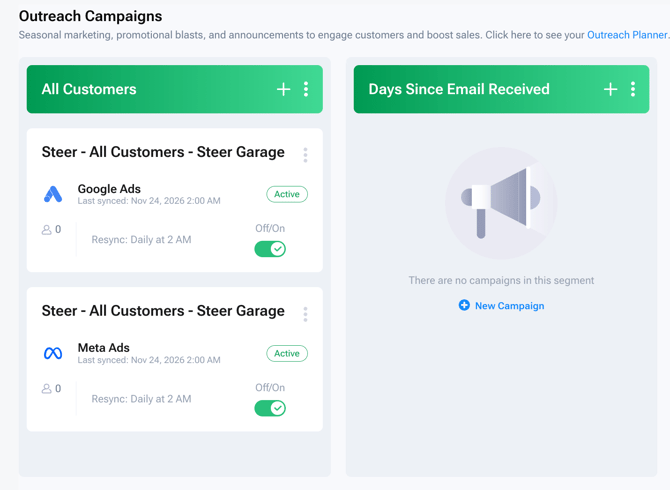
✅ Important: Audience Sync creates and updates customer audiences in your connected advertising accounts. It does not create ads, manage advertising campaigns, or control your advertising spend.
Audience Sync helps you reach customers beyond email and text by connecting your Steer campaign audiences to Google Ads and Meta (Facebook) Ads.
Instead of manually exporting customer lists and uploading them to your advertising platforms, you can use the same customer groups you're already targeting in Steer to reach those customers through paid advertising.
Once connected, Steer automatically updates your audiences every day, helping you keep your advertising aligned with your customer outreach.
To get started, you'll need:
- An existing Google Ads account, Meta Ads account, or both.
- Access to manage permissions within those advertising accounts.
- Tenant Owner or Shop Admin permissions in Steer.
You can connect Google Ads, Meta Ads, or both. Each platform is connected and managed independently.
What can you do with Audience Sync?
- Reach customers across more channels: Use your Steer campaign audiences in Google Ads, Meta Ads, or both.
- Save time managing customer lists: No need to manually export and upload audiences to your advertising accounts.
- Keep audiences up to date: Customers are automatically added or removed as they meet your campaign's targeting criteria.
- Stay in control: Your advertising accounts, campaigns, and budgets remain under your management.
Jump To:
Connecting Your Google Account
Ad Sync Use Cases
Connecting your Google Account
- Log in to Steer.
- Navigate to Shop Settings → Integrations.
- Select the Ad Platforms tab.
- Choose the advertising platform you'd like to connect.
You'll see separate connection cards for Google Ads and Meta Ads, including setup instructions and connection statuses.
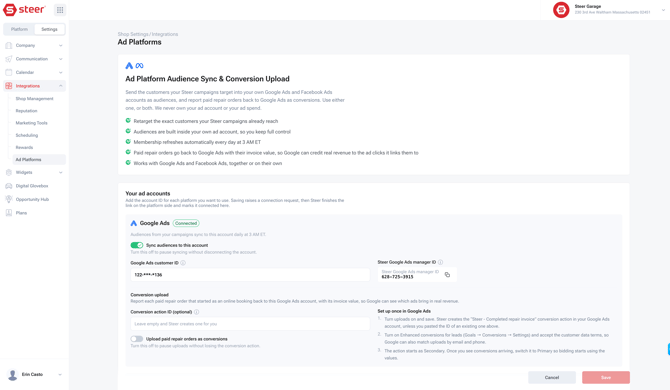
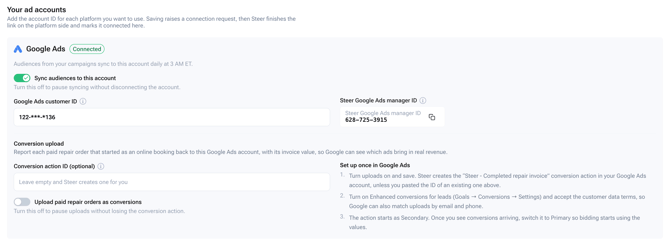
If you're using Google Ads, follow these steps to connect your account to Steer.
- Locate your Google Ads Customer ID in your Google Ads account. You'll typically find this in the upper-right corner.
- In Steer, enter your Customer ID in the Google Ads connection card.
- Click Save.
- Steer will send a connection request from its Google Ads manager account.
- Open Google Ads and navigate to Admin → Access and security → Managers.
- Find and approve the connection request from Steer.
Steer Google Ads Manager ID: 628-725-3915
Once the request has been approved and verified by Steer, your connection status will update to Connected.
Connecting Your Meta Account
If you're using Meta Ads, you'll need to grant Steer partner access to your advertising account.
- Locate your Meta Ad Account ID in Meta Ads Manager.
- In Steer, enter your Ad Account ID in the Meta connection card and save.
- Open Meta Business Settings → Partners.
- Select the option to add a new partner.
- Enter Steer's Partner Business ID.
- Assign your advertising account to Steer.
- Accept Meta's Custom Audience Terms for the connected account.
Steer Partner Business ID: 121449436619419
Once access has been granted and verified by Steer, your connection status will update to Connected.
Important: You must assign your advertising account to Steer and accept Meta's Custom Audience Terms. Adding Steer as a partner without assigning the advertising account will not complete the connection.

Enabling Audience Sync
After your advertising account is connected:
- Return to Shop Settings → Integrations → Ad Platforms.
- Locate your connected advertising account.
- Turn on Sync audiences to this account.
You can enable syncing for Google Ads, Meta Ads, or both.
If you want to temporarily stop syncing audiences, turn the switch off. Your account will remain connected, allowing you to resume syncing later without repeating the connection process.
Syncing Your Steer Audience
Once you've connected your advertising accounts, you can begin syncing audiences directly from Campaign Builder.
Step 1: Create or Configure Your Campaign
- Open Campaign Builder in Steer.
- Create or configure a campaign using your desired customer audience.
- Select the customers you'd like to target using Advanced Filters or an existing Customer Group.
The customers included in your campaign's audience will also be the customers Steer attempts to sync to your advertising platform.
Step 2: Enable Audience Sync
- Locate the Audience Sync option in Campaign Builder.
- Enable Audience Sync.
- Enter a name for your advertising audience.
- Select Google Ads, Meta Ads, or both.
- Complete your campaign setup.
Steer will create a corresponding audience in your selected advertising account.
Only advertising platforms that are connected and have syncing enabled will be available for selection.
Step 3: Monitor Your Audience
To check your synced audiences:
- Navigate to Campaigns → Active.
- Locate your synced campaign.
- Review the audience details and sync status.
You can view information including:
- Audience name
- Customer count
- Last sync time
- Sync status
Understanding Audience Sync
Steer automatically refreshes synced audiences every day at 3 AM ET.
During each refresh:
- Customers who now meet your campaign's targeting criteria are added.
- Customers who no longer meet those criteria are removed.
- Changes to your campaign's audience are reflected in the connected advertising platform.
For example, if you create a campaign targeting customers who haven't visited in six months, the synced audience will update as customers begin meeting or stop meeting that condition.
You don't need to export or upload a new list every time your customer segment changes.
How long does the first sync take?
| Advertising platform | Initial sync time |
|---|---|
| Google Ads | Up to 48 hours |
| Meta (Facebook) Ads | Usually a few hours, but the first sync may take up to 72 hours |
Note: Google Ads Customer Match audiences must also meet Google's minimum matching requirements before they can be used for advertising.
Changes to your Steer campaign audience are not reflected immediately. They will be included in the next scheduled daily sync.
Audience Sync Use Cases
Not sure where to start? Here are a few ways you can use Audience Sync to support your shop's marketing strategy.
Bring Back Customers with Deferred Services
Create a Steer campaign targeting customers who declined recommended services during a previous visit.
For example, you could target customers with deferred brake repairs, then use that same audience in Google or Meta advertising to remind them about the importance of scheduling service.
Goal: Encourage customers to return and complete recommended work.
Remind Customers About Upcoming Maintenance
Create a campaign targeting customers approaching their next recommended maintenance interval.
Sync that audience to your advertising account to reinforce your maintenance reminders through paid advertising.
Goal: Stay top of mind when customers are approaching their next service.
Reconnect with Customers Who Haven't Visited Recently
Build an audience of customers who haven't visited your shop in six months or longer.
Use a Steer campaign and supporting advertising to invite those customers back for service.
Goal: Re-engage inactive customers and encourage repeat visits.
Support Promotions Across Multiple Locations
For multi-location businesses, Audience Sync can help support regional or location-specific advertising strategies.
For example, you might promote winter maintenance to customers at northern locations while advertising different seasonal services at southern locations.
Each shop can connect its advertising accounts and sync audiences relevant to its customers.
Goal: Support consistent promotional strategies with more relevant customer targeting.
Note: Audience Sync connections are currently managed at the individual shop level, not centrally at the MSO tenant level.
Please reach out to Customer Support if you have any questions.
- or chat with our team via the Steer platform.