
⚙️✅Access: You must have access to your shop's AutoOps booking settings. You should also have a process for reviewing and entering offline appointments into your shop management system.
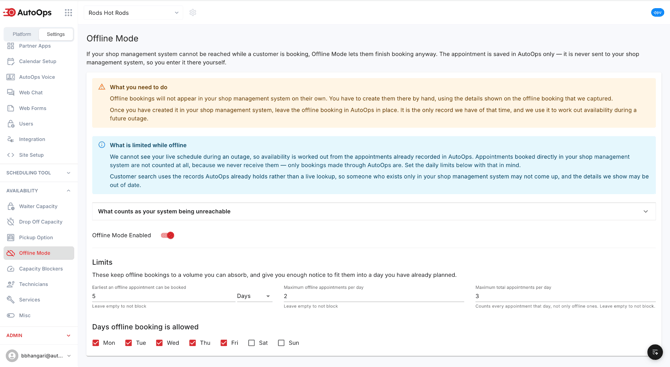
Offline Mode lets your shop continue receiving online appointment requests when AutoOps cannot communicate with your shop management system (SMS).
When Offline Mode is enabled, customers can still request appointments through your online booking tool. Those requests are recorded in AutoOps, but they must be manually entered into your shop management system once the connection is restored.
This helps your shop avoid missing potential appointments during a temporary integration outage.
Jump To:
Offline Mode booking experience
Find and review offline appointments
What happens when the connection is restored?
Supported Shop Management Systems
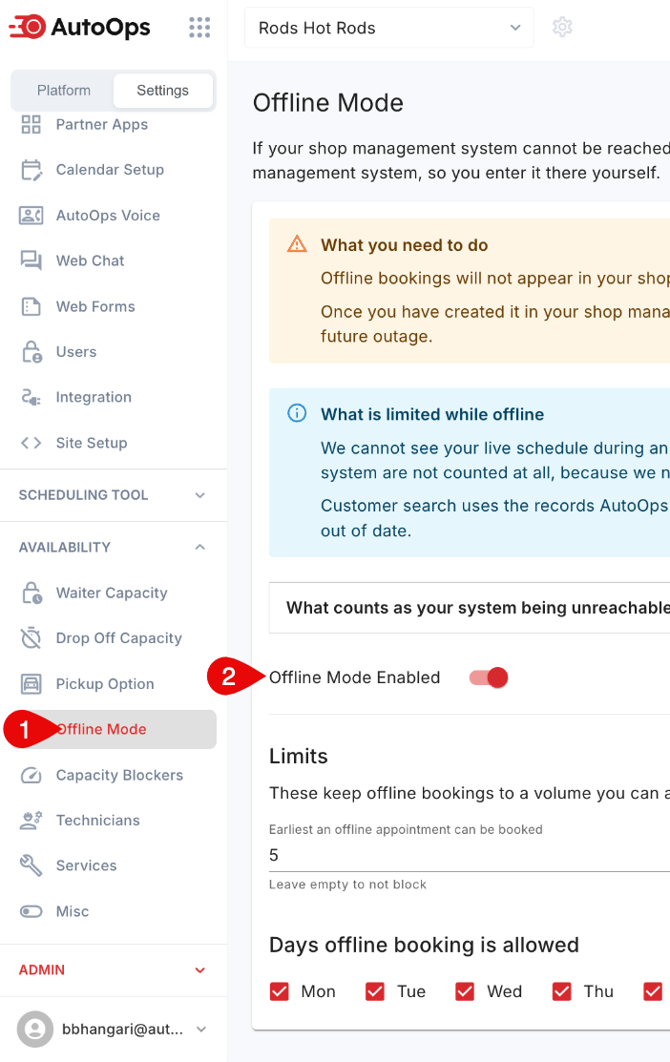
How to Enable Offline Mode
|
 |
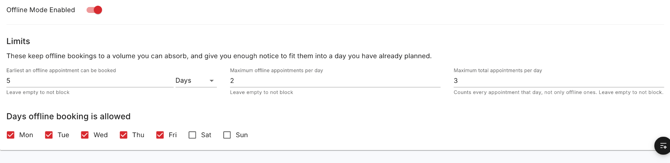
Configuring Offline Booking Limits
Setting appointment limits
- On the Offline Mode settings page, scroll to Limits.
- Configure the available booking limit fields, including the number of offline bookings your shop can accept.
- Review the setting that limits offline appointments based on how far in advance customers are booking.
- Confirm that the limits align with your shop's ability to accommodate appointments without real-time availability from your shop management system.
Choosing days to allow offline bookings
- Find Days offline booking is allowed.
- Select the days of the week when your shop wants to accept offline appointments.
- Deselect any days when your shop does not want to accept offline bookings.
- Review your selections before leaving the page.
✅ Tip: Consider limiting offline bookings to days when your shop has enough staff and capacity to manage appointments manually.
Customer Booking Experience
When your shop management system is unreachable, customers can continue through a modified version of your normal online booking experience.
Booking a new appointment
The customer will move through the current booking flow and be able to book an appointment based on the limits defined in the Limits section.Managing an existing appointment
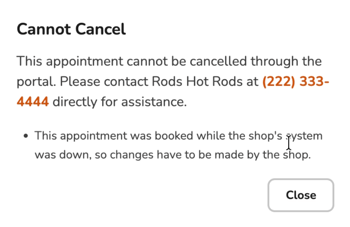
Canceling or rescheduling an appointment
- The customer opens the My Appointments experience.
- They locate the appointment they want to cancel.
- They select Cancel or Reschedule
- The booking portal displays a message directing the customer to contact the shop.
Find and Review Offline Appointments
- Select Appointments from the left navigation.
- Locate the appointments marked Offline Booking.
- Select an appointment to open its details.
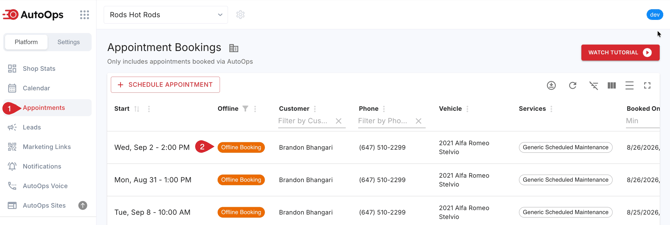
Review appointment information
The appointment details page displays information associated with the booking, including customer information, vehicle information, and requested appointment details.
- Review the appointment date and time.
- Confirm the customer's contact information.
- Review the vehicle and service information.
- Check that your shop can accommodate the requested appointment.
- Manually enter the appointment into your shop management system as needed.
View offline appointments on the calendar
- Select Calendar from the left navigation.
- Navigate to the date of the offline booking.
- Offline booking appointments are marked with an orange OB badge.
- Select or hover over the appointment to review the available details.
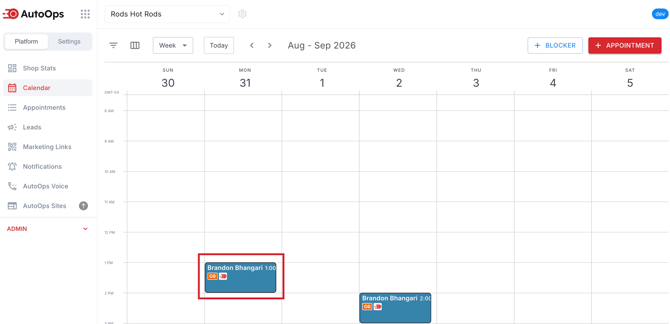
Offline bookings appear alongside other appointments, allowing your team to review upcoming work in one place.
What Happens When the Connection Is Restored?
When AutoOps can communicate with your shop management system again, your normal integrated booking workflow resumes.
Any appointments accepted during the outage still require attention from your team.
- Review the appointments marked Offline Booking in AutoOps.
- Verify each appointment against your shop's actual availability.
- Enter any missing appointments into your shop management system.
- Contact customers if an appointment needs to be adjusted.
Supported Shop Management Systems
| Shop Management System | Offline Mode |
| Shopware | ✅ |
| Tekmetric | ✅ |
Please reach out to Customer Support if you have any questions.
- or chat with our team via the Steer platform.