⚙️✅ Access: AutoOps can read Deferred Work from the following Shop Management Systems: Tekmetric, ShopWare, Identifix, NAPA Tracs, & Protractor.
If you utilize a different shop management system than listed above, AutoOps can read Deferred Work from your Steer Shop page using Steer's Deferred Service data pulled from your shop management system. -> Book a Steer Demo
Jump To:
-> How to Enable Dismissing Deferred Work
-> The Shop Customer Experience of Dismissing Deferred Work
Let customers remove past deferred work during their scheduling process Understand why the work is being postponed whether it’s timing, cost, or something else. And get notified when a customer dismisses a service
How to Enable Dismissing Deferred Work
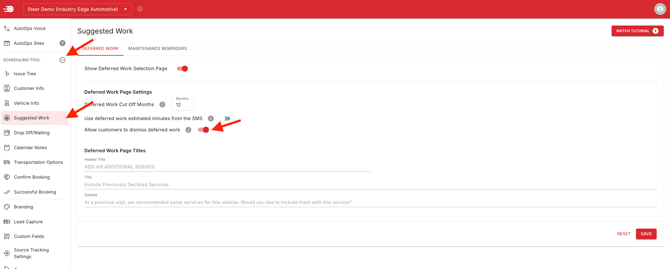
In AutoOps, navigate to
-
Scheduling Tool > Suggested Work
-
Toggle ON "Allow customers to dismiss deferred work"
- Enabling this feature will allow customers to dismiss individual deferred work items during the booking process.
- Save your changes.
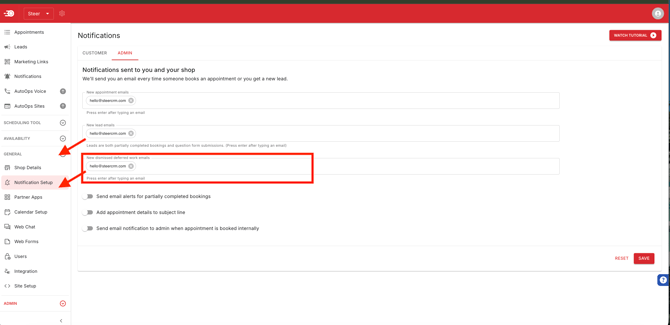
You are able to receive email alerts for deferred work that customers have dismissed during the booking process.
To receive email notifications for dismissed work navigate to
- General > Notification Setup
- Click Admin
- Input all emails of those who would like to receive notification of dismissed deferred work.
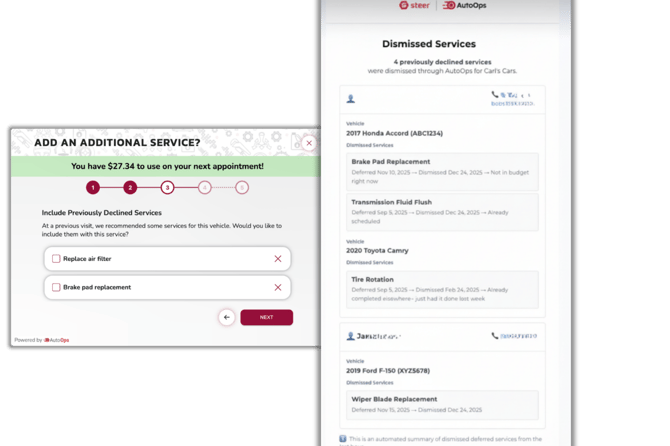
The email notifications regarding dismissed deferred work will resemble the notification below.
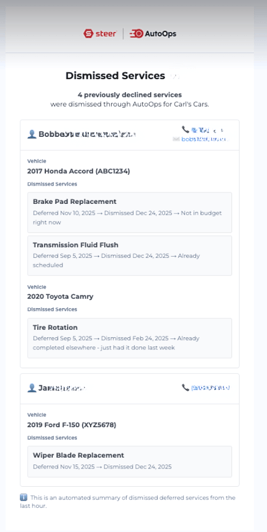
Be sure to remove the dismissed deferred work from the customer's record in your shop management system. A customer dismissing deferred work during booking does not update your shop management system customer records or Steer customer records.
The Shop Customer Experience of Dismissing Deferred Work
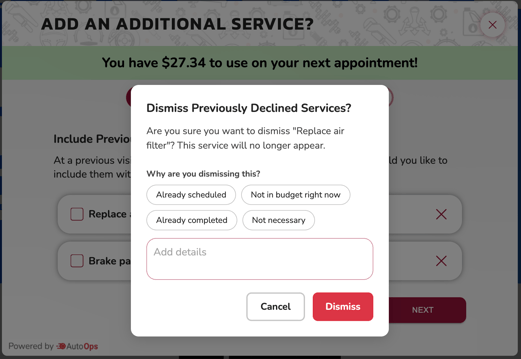
During the booking process your customer's are able to view deferred work for the vehicle they have selected, if the selected vehicle has previous deferred work.
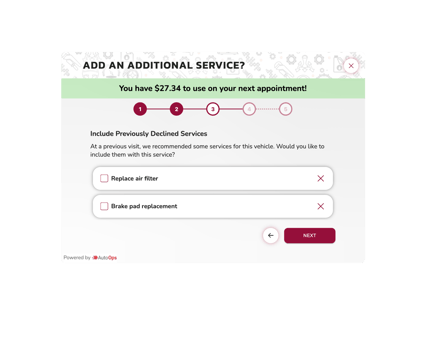
Your customers can select the check box to add the deferred work to the current appointment they are booking.
Or your customer's can click the X beside a deferred work item to dismiss the deferred work. They will be prompted to provide comments as to why they are dismissing the deferred work. These comments will be included in the email notifications your team receives for dismissed deferred work.