
Steer enables you to manually create customer and vehicle profiles, streamlining your data entry and simplifying future communications.
Reminder: Steer will create customer and vehicle profiles automatically for customers when they book an appointment or close an invoice with your shop.
Jump To:
How to Add a Customer Profile in Steer
How to Add a Vehicle to a Customer in Steer
How to Add a Customer Profile in Steer
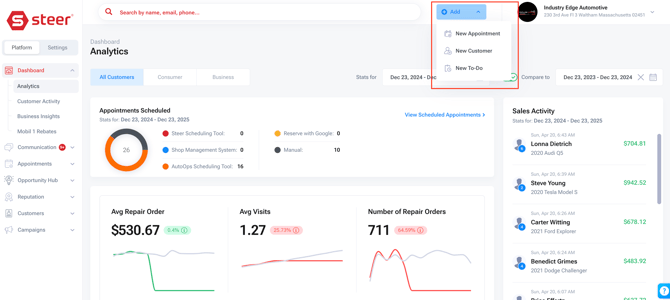
Adding a customer profile in Steer is made easy with the +Add button located at the top of the Steer platform; this button can be accessed on any Steer page.
1. Click +Add.
2. Select New Customer.
3. Input the customer details, such as:
- Customer Type: Consumer or Business.
- Personal Info: Name, Company, & Insurance.
- Contact Info: Email, Phone Number, & Mailing Address.
- Include if the customer approves to receive both communication types.
- Additional Info: Customer Birthday.


4. Click Create to save your new customer profile.
This customer is now in your Steer system and can be sent text messages and campaigns. When you close invoices in your Shop Management System for this customer, Steer will match their closed invoices to their Steer profile.
How to Add a Vehicle to a Customer in Steer
In Steer, you are able to add new vehicles to an existing customer profile. If you need to add a vehicle to a customer not yet in Steer, you will need to create their customer profile first, see the above section for instructions.
To add a vehicle to a customer profile in Steer:
1. Locate the customer profile - or create a new one for a customer not yet in your system.
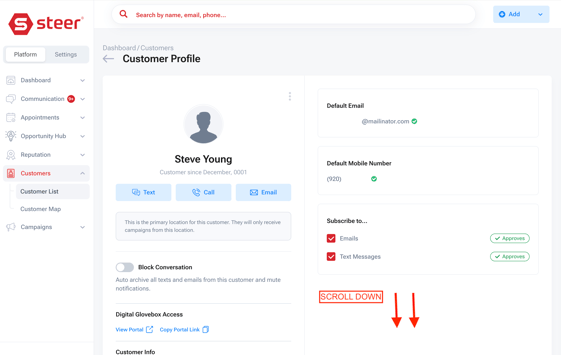
2. Scroll to the bottom of the customer profile to the vehicles section.
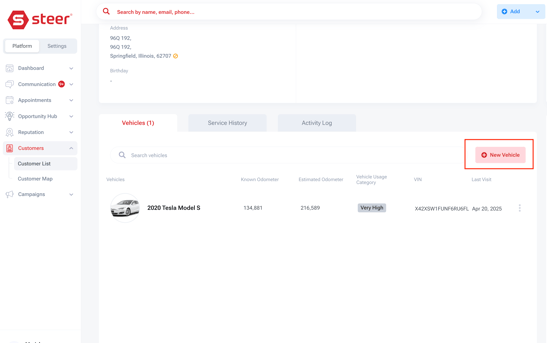
3. Click +New Vehicle.
4. Input the vehicle Details.
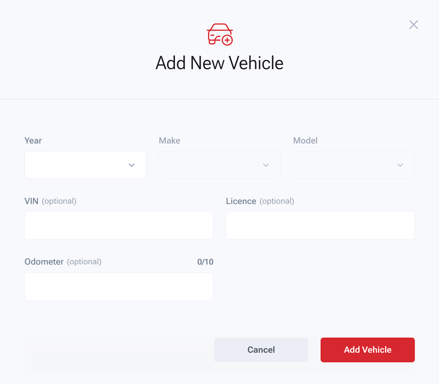
5. Save.
This vehicle is now attached to your customer, when Steer receives closed invoices from your Shop Management System for this vehicle/customer, Steer will match the invoice to be viewable on the vehicle profile.
Please reach out to Customer Support if you have any questions.
- or chat with our team via the Steer platform.